Export business cards to Excel
To get business cards into Excel, scan each card with KotaDex, check the details, and export your whole contact list as a CSV file. Excel, Numbers and Google Sheets open it directly, and a vCard export brings the same contacts into your phone's contacts app.


Last updated · Covers KotaDex 2.5.0
How to export business cards to Excel
-
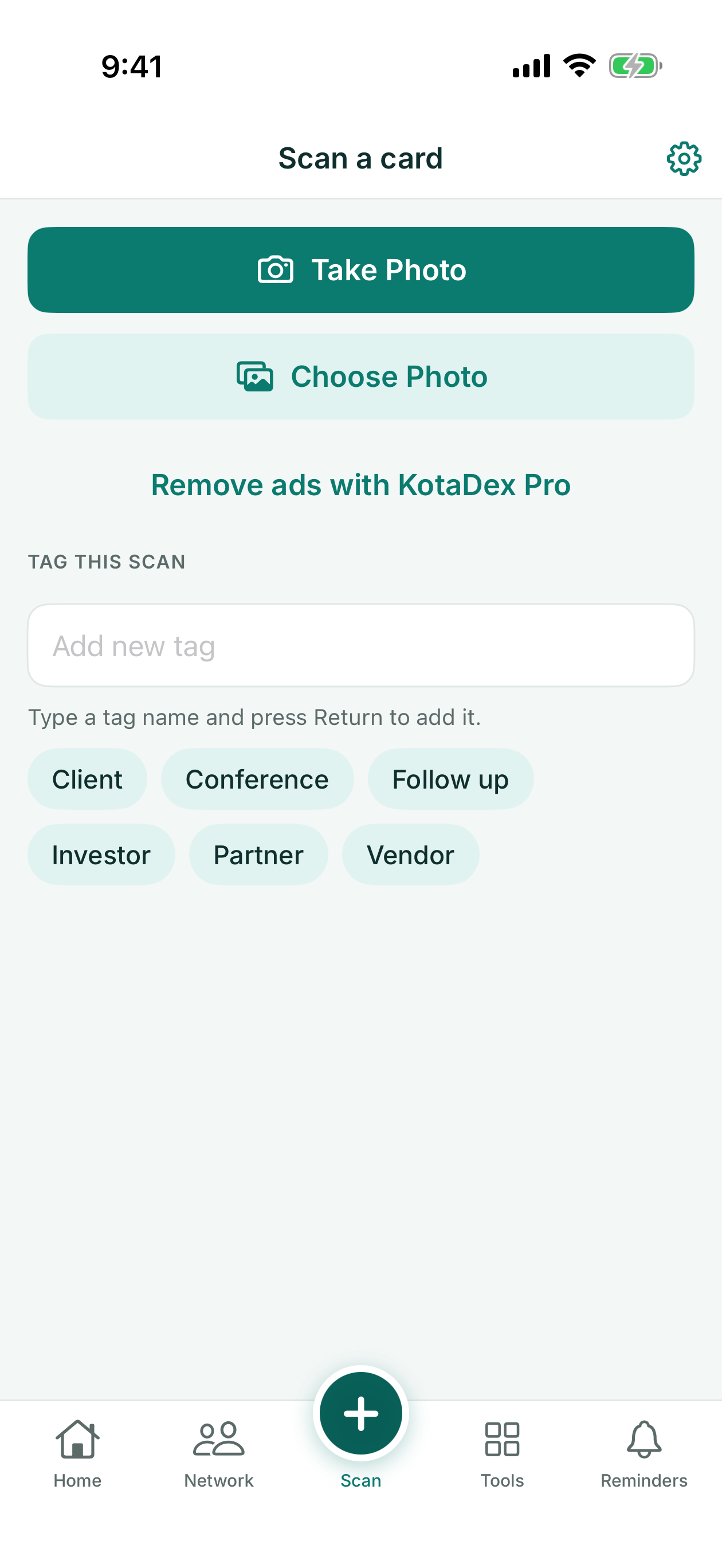
Tap Scan, then Take Photo, or Choose Photo for a card you photographed earlier.
-
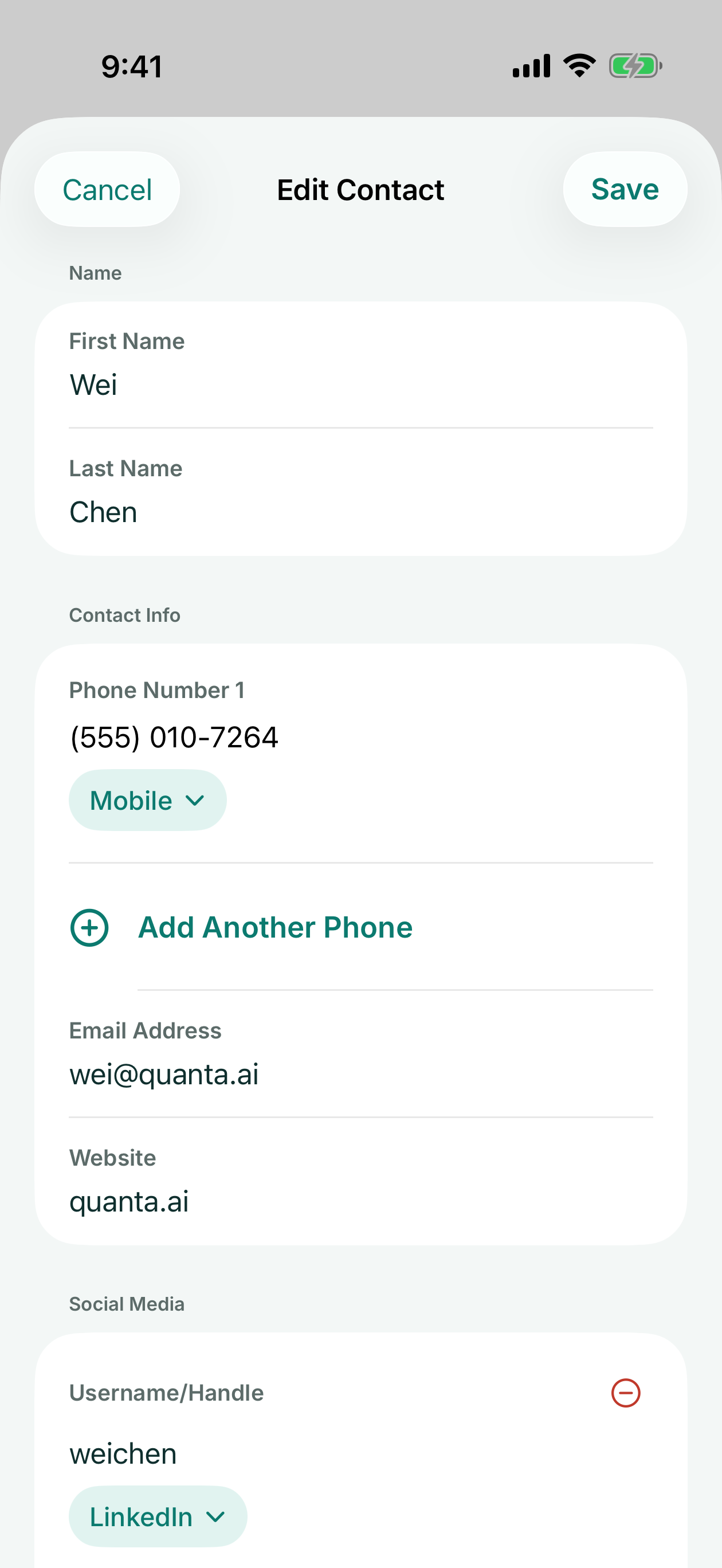
Check the details KotaDex filled in and tap Save. On iPhone and iPad the contact is also added to your Contacts app if you allow access; on Android, KotaDex asks whether to add it.
-
Open the Network tab.
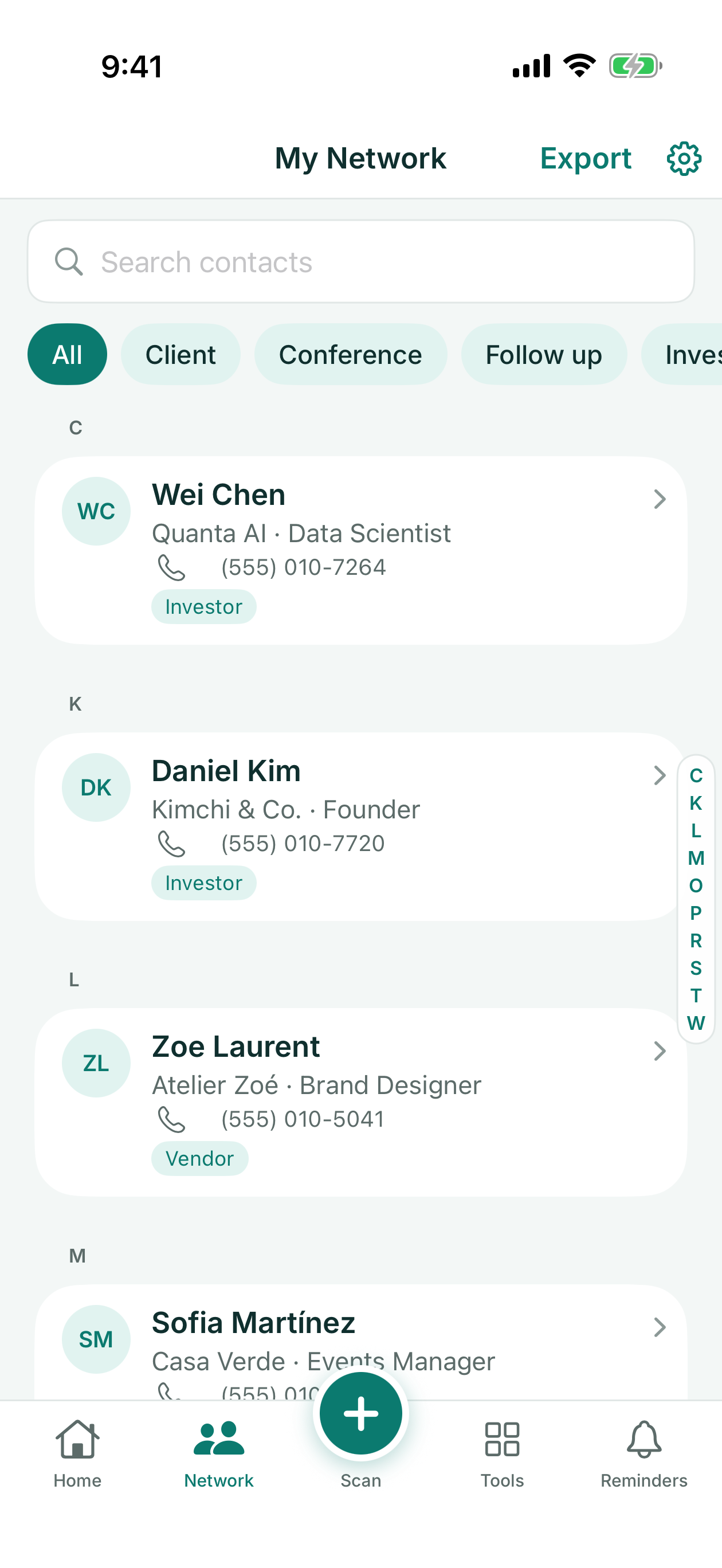
- Tap Export.
- Choose CSV spreadsheet or vCard contacts file (.vcf). On iPhone and iPad, the share sheet opens: save the file to Files, or send it by email or AirDrop. On Android, choose Save to Downloads or Share….
CSV or vCard?
CSV is for spreadsheets and CRMs. vCard (.vcf) is for a contacts app, such as the one on your phone. The vCard export puts your whole network in one file, and some desktop email apps import only the first contact from a file like that.
Working through a stack of cards
Tag each scan as you go, for example with the event name, so you can find that group later. Pick or type the tag under Tag this scan before you take the photo, and every card you scan gets it. In the Network tab, tap the tag's chip to see just that group.
Is it free?
Yes. Card scanning is unlimited. Your first export is free; after that, a short ad plays before each export, or KotaDex Pro makes every export instant ($0.99 a month or $5.99 a year in the US).
Questions and answers
What's in the file?
The CSV has a header row and one row per contact. The columns are First Name and Last Name; then, for each phone number, the number and its type, such as Mobile or Work; then Email, Website, Company, Job Title, Address, Social Media, Tags and Notes. There are as many phone columns as the contact with the most numbers needs. The vCard file holds the same details, one contact card per person.
Can I export just one tag?
No. The export always includes every contact, whatever the Network tab is showing. Each contact's tags are in the Tags column, so you can filter the spreadsheet to one tag.
Does it work on Android?
Yes. Scanning and export work the same way on iPhone, iPad and Android, apart from the two differences in the steps: adding the person to your phone's contacts, and where the file goes.
Where does the file go?
On iPhone and iPad, the share sheet opens and you choose where it goes, for example Save to Files, Mail or AirDrop. On Android, Save to Downloads puts it in your Downloads folder with the date in its name (Android 10 or later), and Share… opens the share menu.
Your contacts are read and stored only on your phone. We never receive them. How KotaDex handles your data
More guides
- Free digital business card with a QR code
- Scan receipts to CSV for your expense report
- The KotaDex tutorial: My Network and export
- KotaDex home page
Get KotaDex
Free to download for iPhone, iPad and Android.