KotaDex - User Tutorial
Covers KotaDex 2.5.0 · Last updated
The complete guide to KotaDex for iOS and Android — from your first scanned card to your digital business card, follow-up reminders and all seven tools. Screenshots switch between iPhone and Android with the toggle.
Getting Started
KotaDex is a business toolkit built around one moment: someone hands you a card. Scan it, and the contact is in your network with the tags and reminders you need to follow up. Around that core sit seven tools for the paperwork of working life — receipts, documents, handwritten notes and barcodes.
The app is organized into five tabs along the bottom of the screen:
- Home - your digital business card and the quick actions
- Network - every contact you have scanned, searchable and filterable by tag
- Scan - the raised button in the middle: scan a business card
- Tools - the seven tools
- Reminders - follow-up reminders by tag
Settings lives behind the gear in the top-right corner of every screen.
Free vs Pro
- Free: everything in this tutorial. Ads appear on the browsing screens and now and then after you save something. Your first export is free; after that, a short ad unlocks each export — a CSV or vCard file, a PDF or a printout.
- Pro: exactly the same features with every ad removed and instant exports — see KotaDex Pro.
Without an internet connection KotaDex keeps working. When no ad can load, offline or anywhere Google has no ad to show, one of our other apps takes the ad’s place for about as long as the ad would have run, and your export goes through when it ends.
Everything you scan or type is stored only on your device: there is no account, no cloud and no sync. On iPhone and iPad, back up your device to keep a copy. On Android, KotaDex's data is left out of Google's backup, so export your contacts from the Network tab to keep a copy or to move them to a new phone.
Scanning a Business Card
Tap the round Scan button in the middle of the tab bar, or Scan a card on the Home screen.
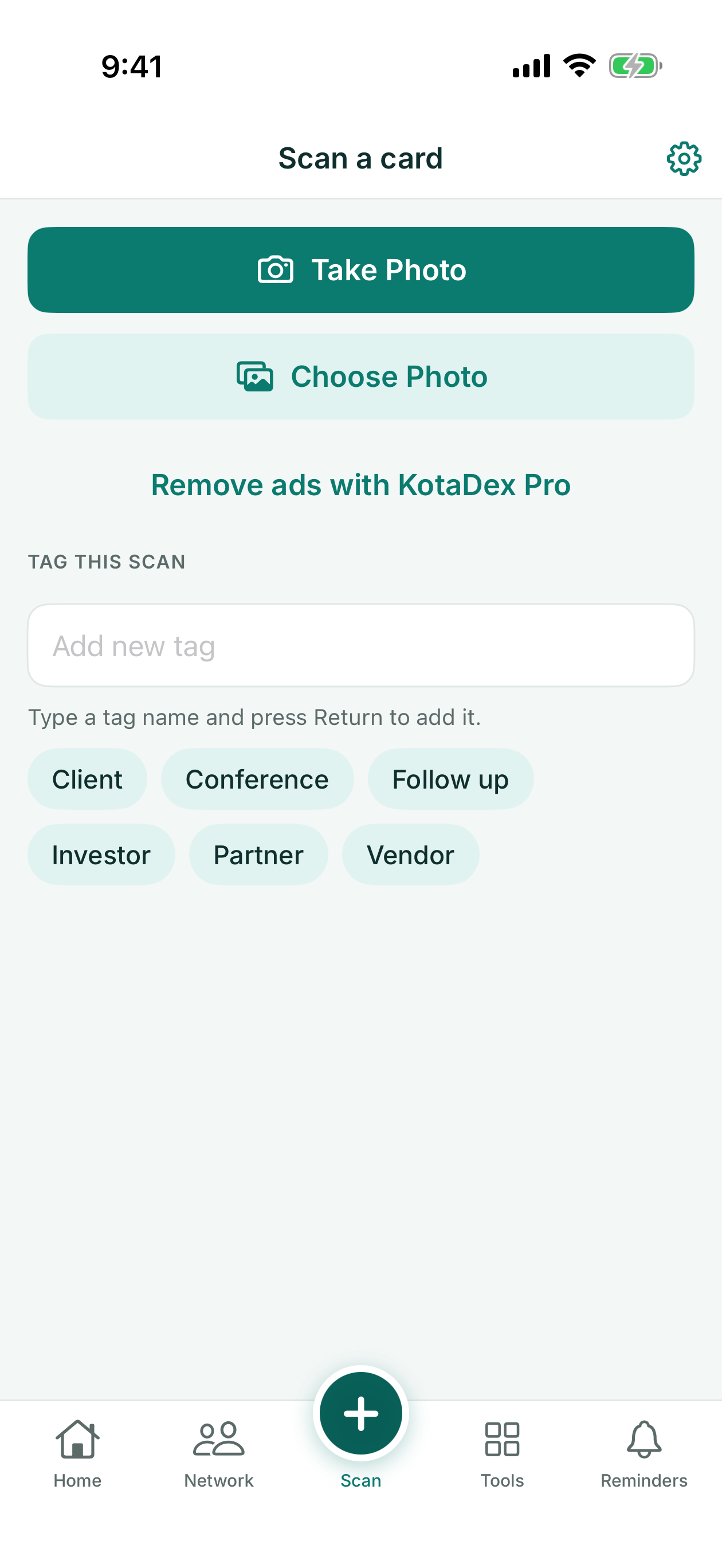
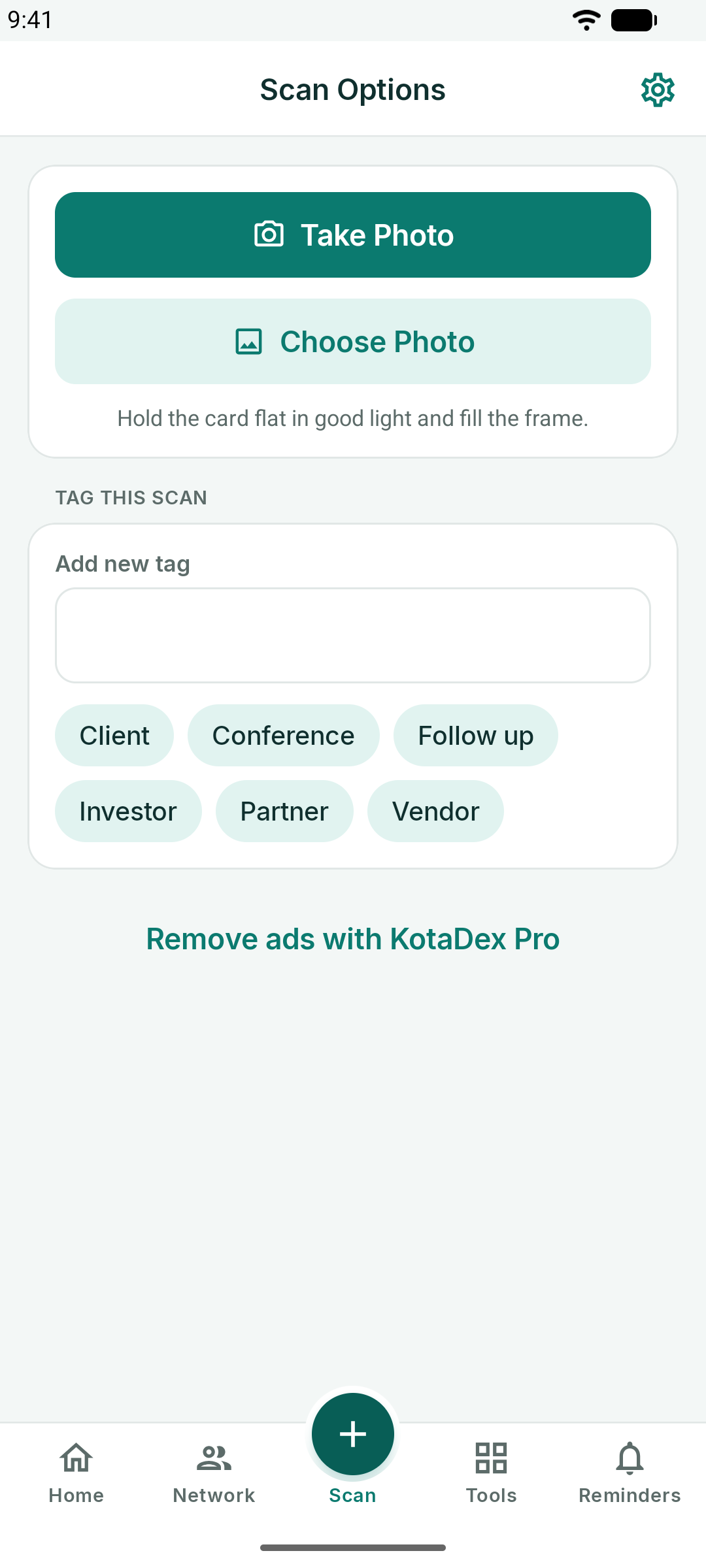
- Take Photo opens the camera. Fill the frame with the card, hold the phone level, and tap the shutter.
- Choose Photo imports a card you photographed earlier.
- Tag this scan before you shoot: tap an existing tag or type a new one (on iPhone and iPad, press Return to add it). The tag is attached to the contact automatically.
KotaDex reads the card on your device — Apple Vision on iOS, Google ML Kit on Android — and fills in the name, job title, company, phone numbers, email and website it finds.
On iPhone and iPad, text recognition reads Latin-script languages, Chinese, Japanese, Korean, Cyrillic, Arabic and Thai. Greek, Hebrew and Hindi can't be read yet; when the app is in one of those languages, the scan screens say so.
On Android, text recognition reads Latin-script languages, plus Chinese, Japanese, Korean and Hindi when the app is in that language. Arabic, Cyrillic, Greek, Hebrew and Thai can't be read yet; when the app is in one of those languages, the scan screens say so.
If the card carries a photo of the person, KotaDex finds the face and shows it in the editor. On iPhone and iPad it also becomes the picture of the contact saved to your phone's Contacts app.
Reviewing and Saving
After a scan you land in the contact editor with every field pre-filled. Fix anything the camera misread, add notes ("met at SaaS Summit"), and tap Save.
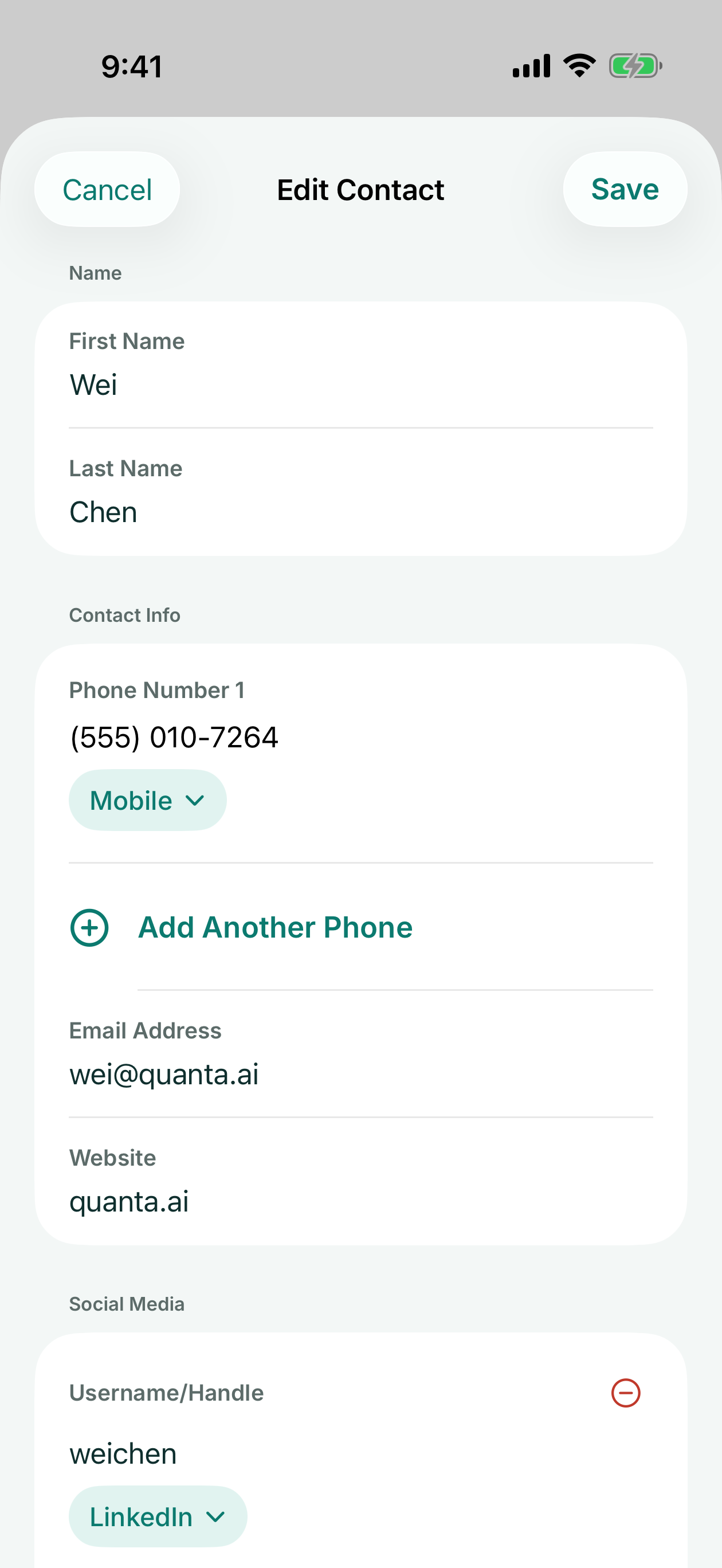
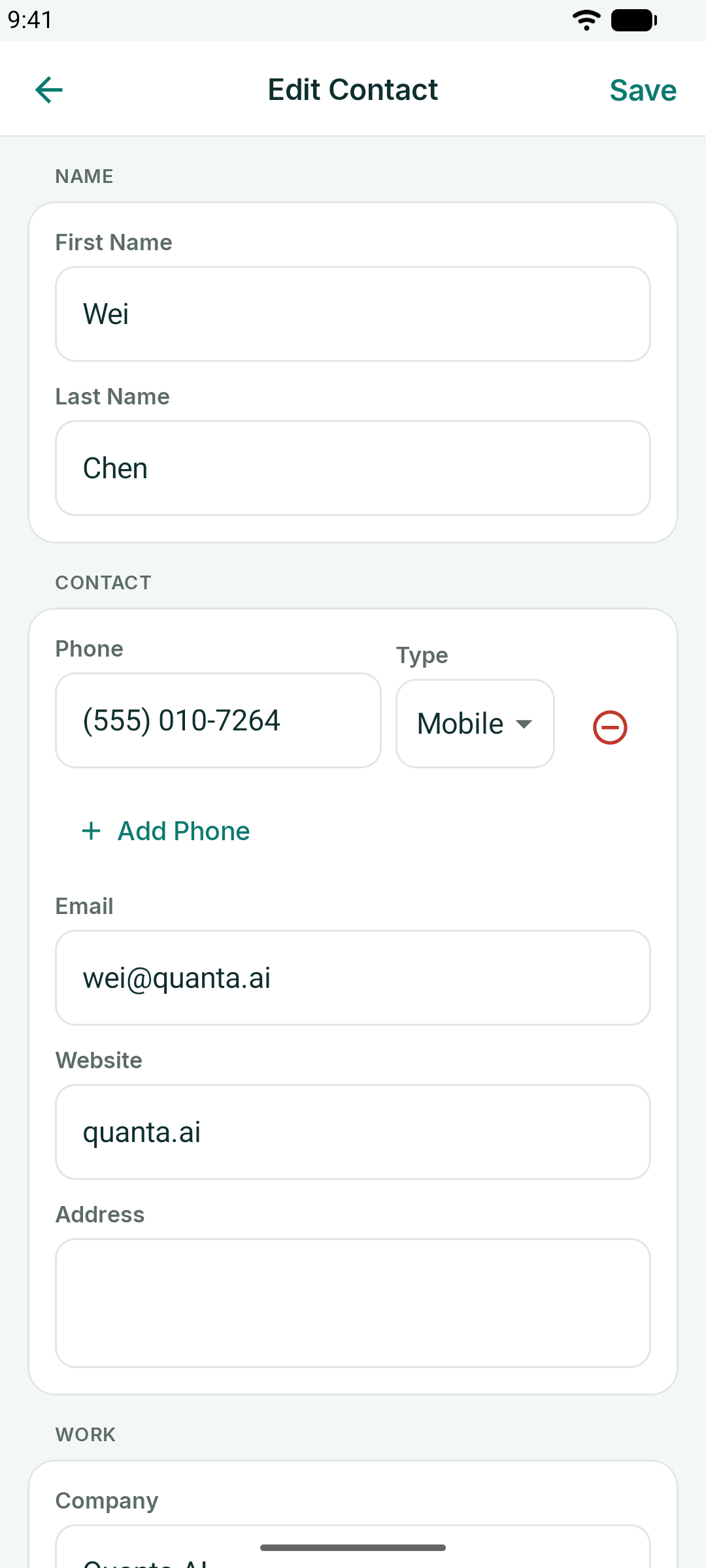
- Each phone number has a type — Mobile, Work, Home and more — that you can change, and you can add as many numbers as you need.
- Social handles get a platform picker: LinkedIn, X, Instagram and more.
On iPhone and iPad, saving a newly scanned card also adds the person to your phone's Contacts app, with the face from the card if it found one, as long as you allow KotaDex access to your contacts.
On Android, after you save a newly scanned card KotaDex asks whether to add the person to your phone's contacts too: Save to Contacts opens your contacts app with the details filled in, and Just KotaDex keeps the card in KotaDex only.
My Network
The Network tab is every card you have ever scanned, sorted by last name with an A-Z index on the right.
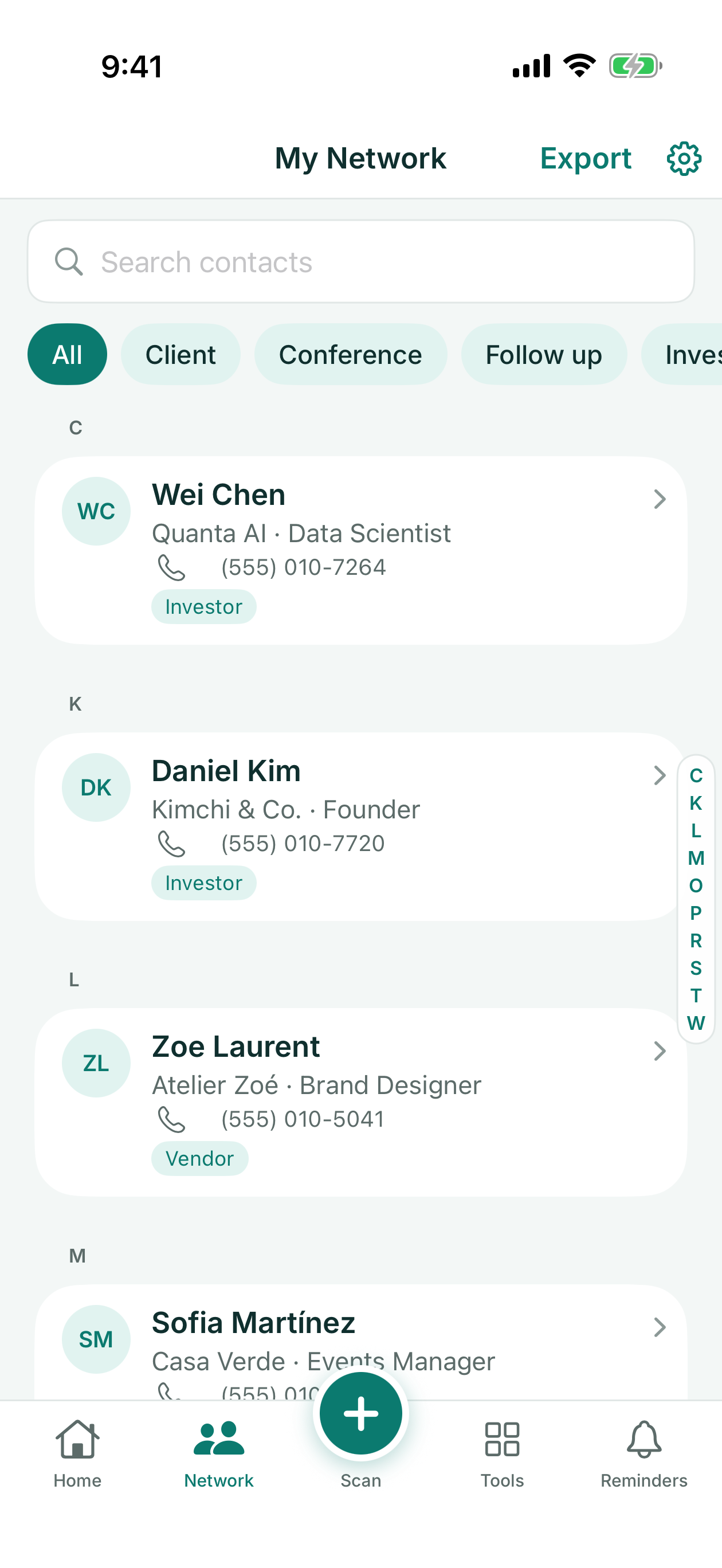
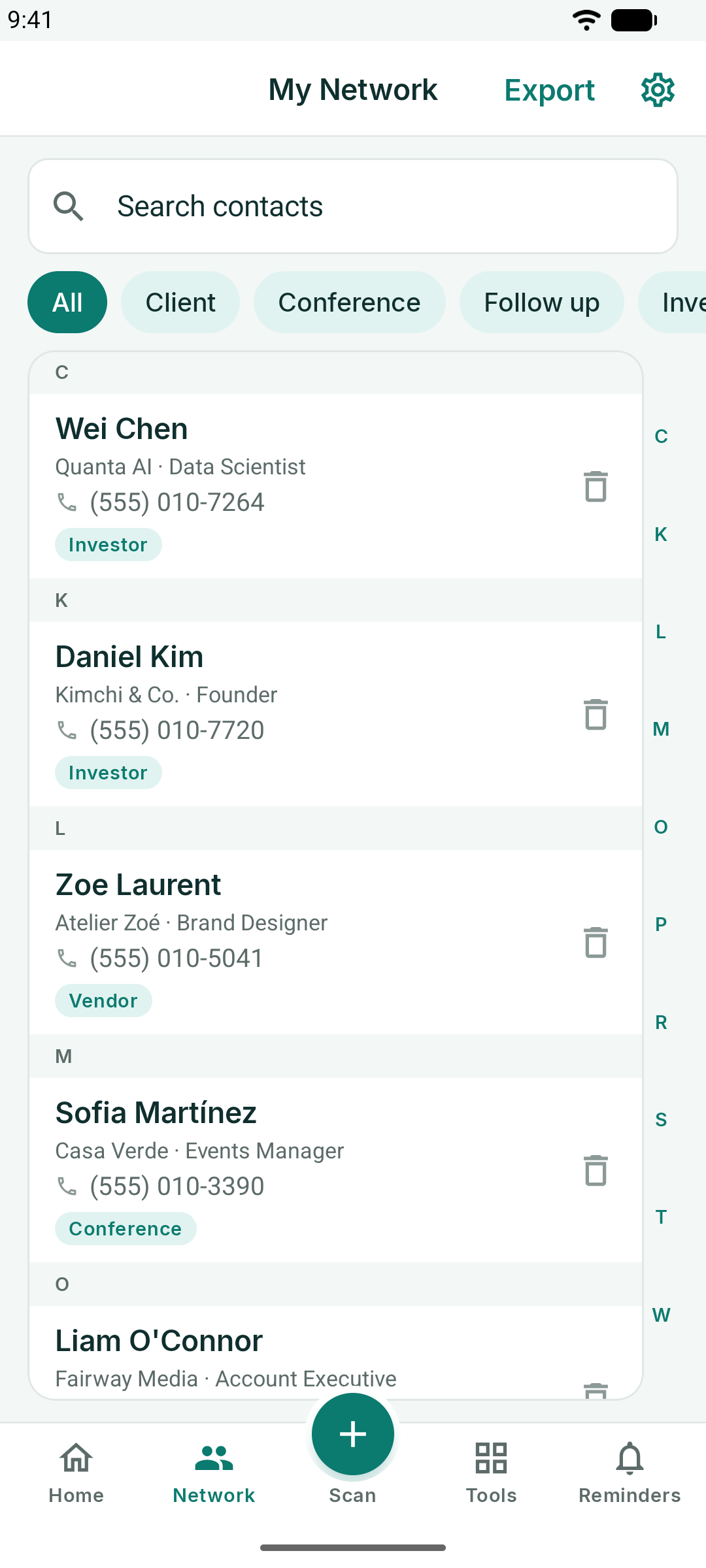
- Search matches names, companies, job titles, phone numbers, emails, tags and notes as you type.
- Tag chips under the search field filter the list to one tag; All brings everyone back.
- Tap a contact to edit it; swipe to delete on iOS, or use the trash icon on Android.
- Export in the header writes the whole network to a CSV file you can open in Excel, Numbers or Google Sheets, or import into a CRM — or to a vCard (.vcf) file for your contacts app.
Export is instant with Pro. On the free plan your first export is free; after that, a short ad plays first.
Step by step, with what's in the file: Export business cards to Excel.
Tags
Tags are how KotaDex remembers *why* you have a card. Add them while scanning, or edit a contact and add them later. Typical tags: Client, Partner, Investor, Vendor, Conference, Follow up.
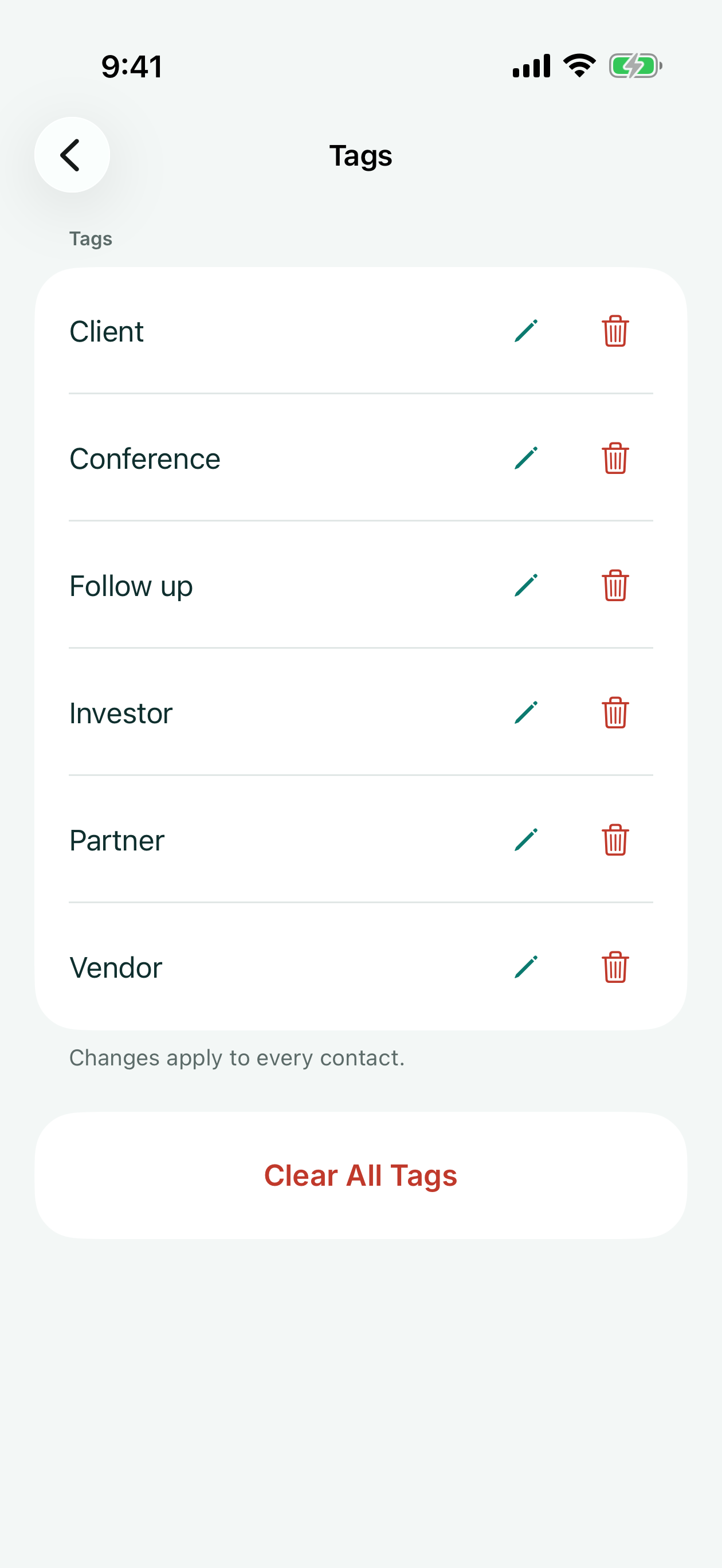
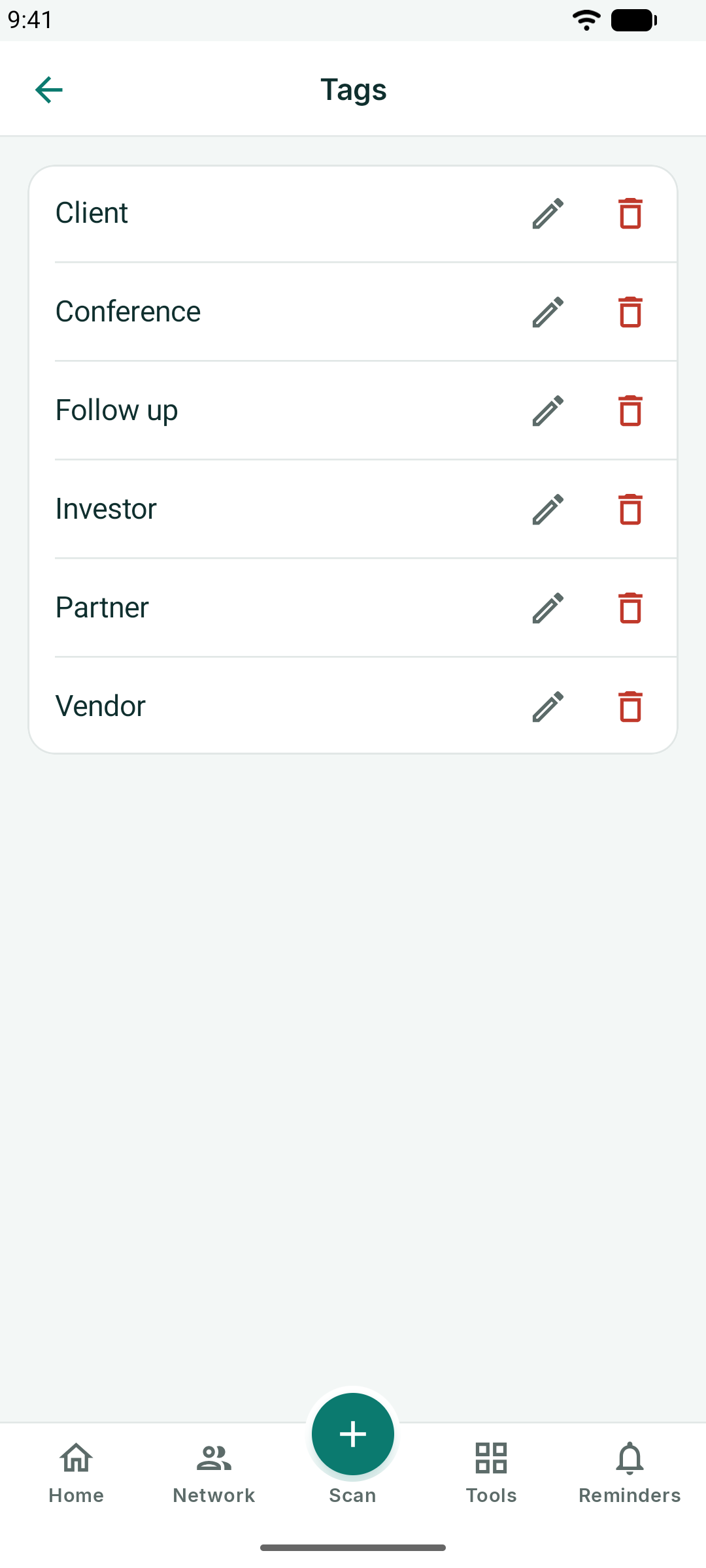
Settings → Tags lists every tag in use; rename a tag there and every contact updates.
Your Digital Business Card
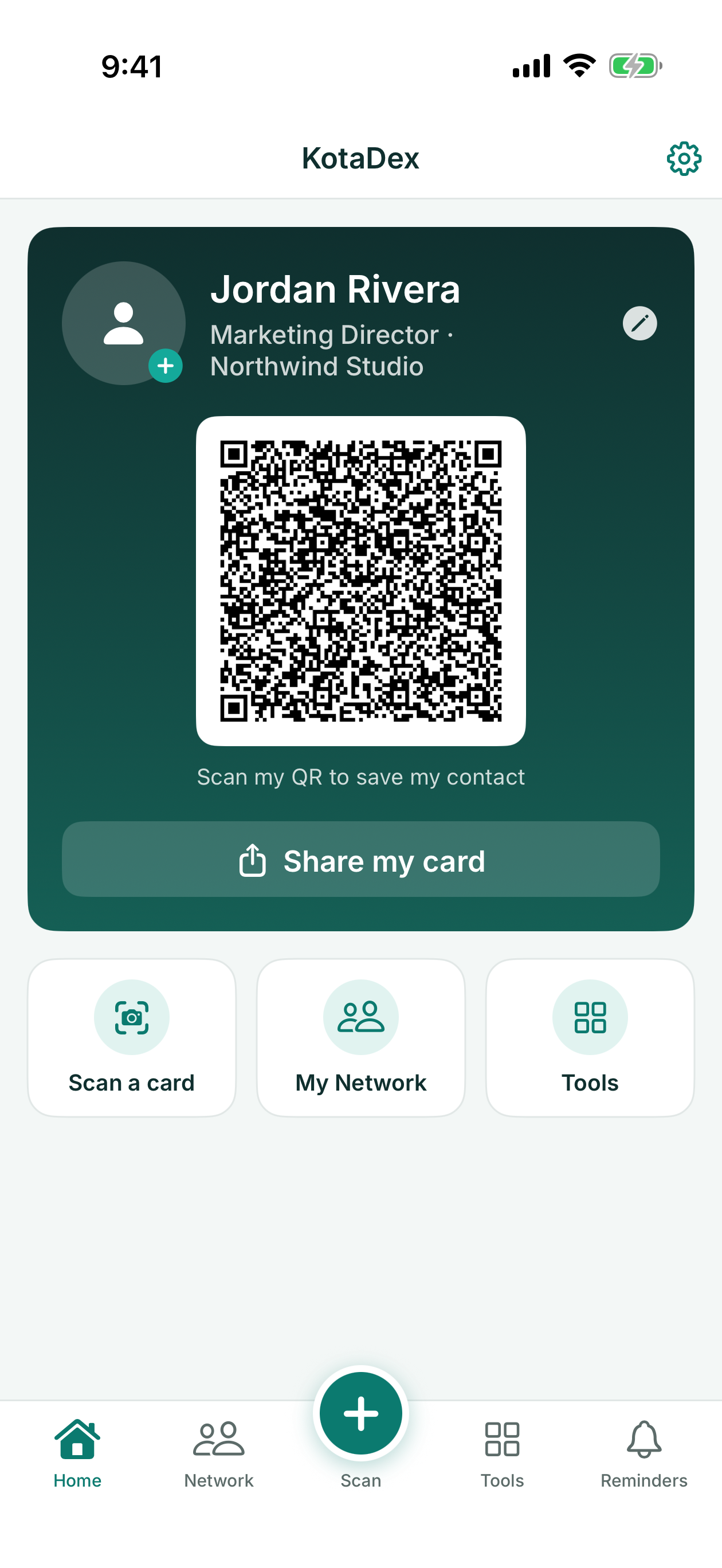
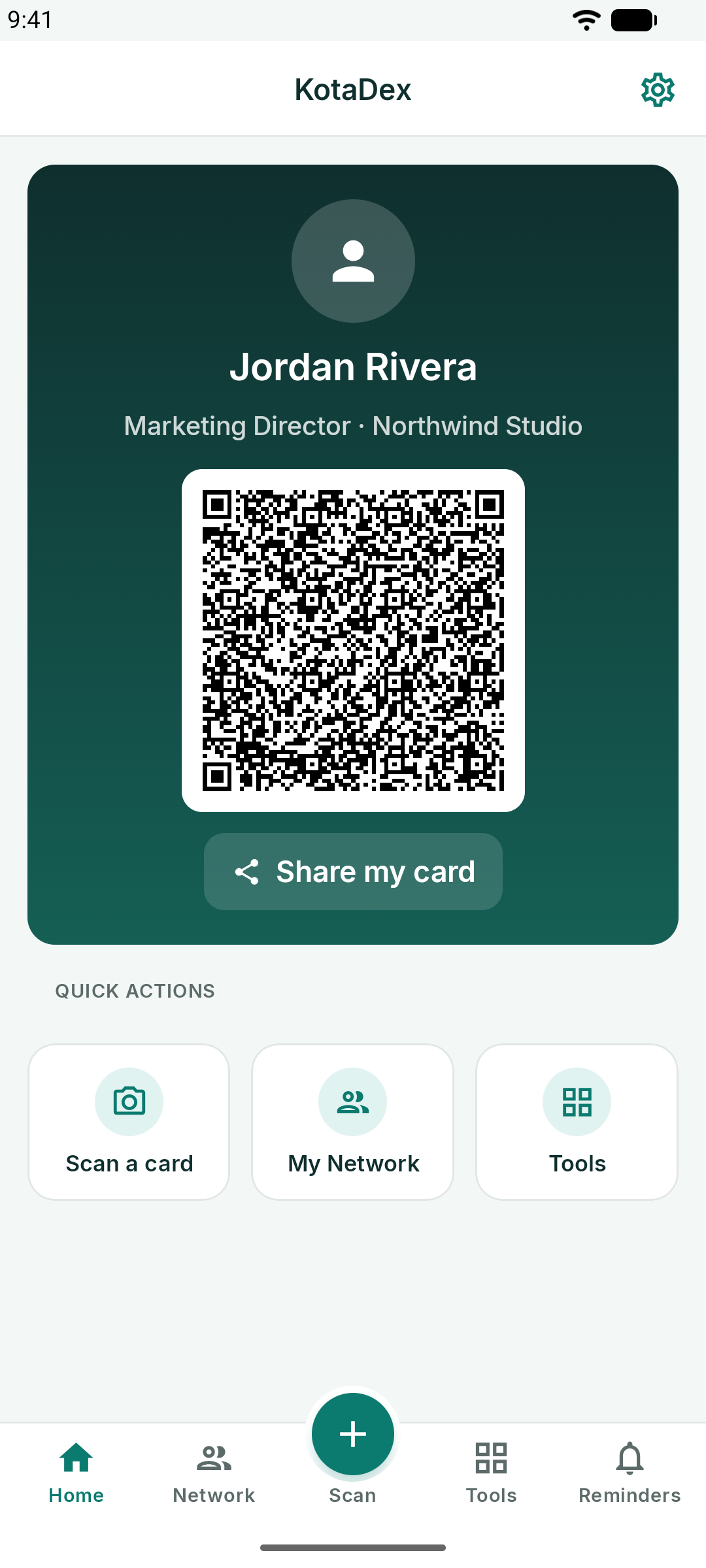
The Home screen is your own card. The first time you open KotaDex, the welcome screen offers to set it up: your name, job title, company, phone and email, plus an optional photo and a logo for the middle of the QR code.
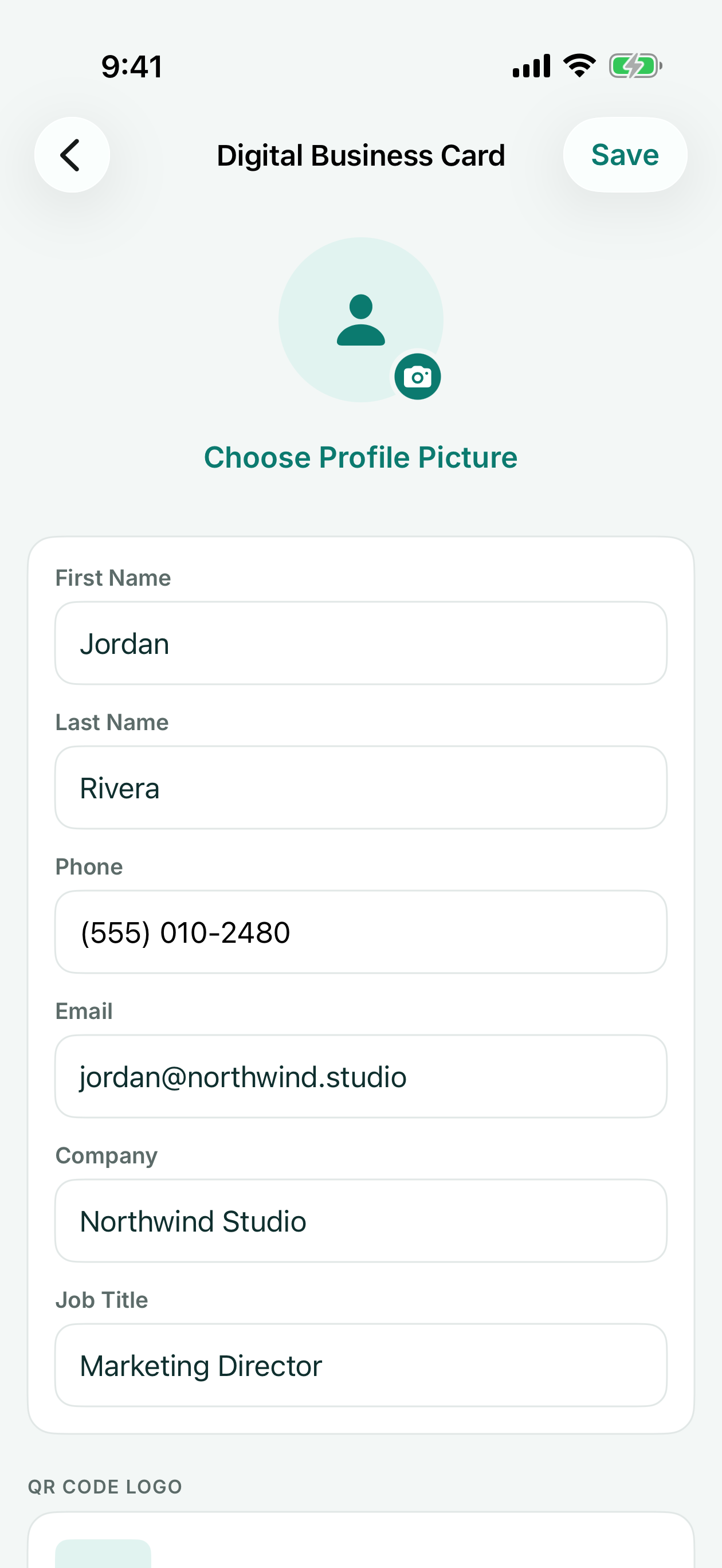
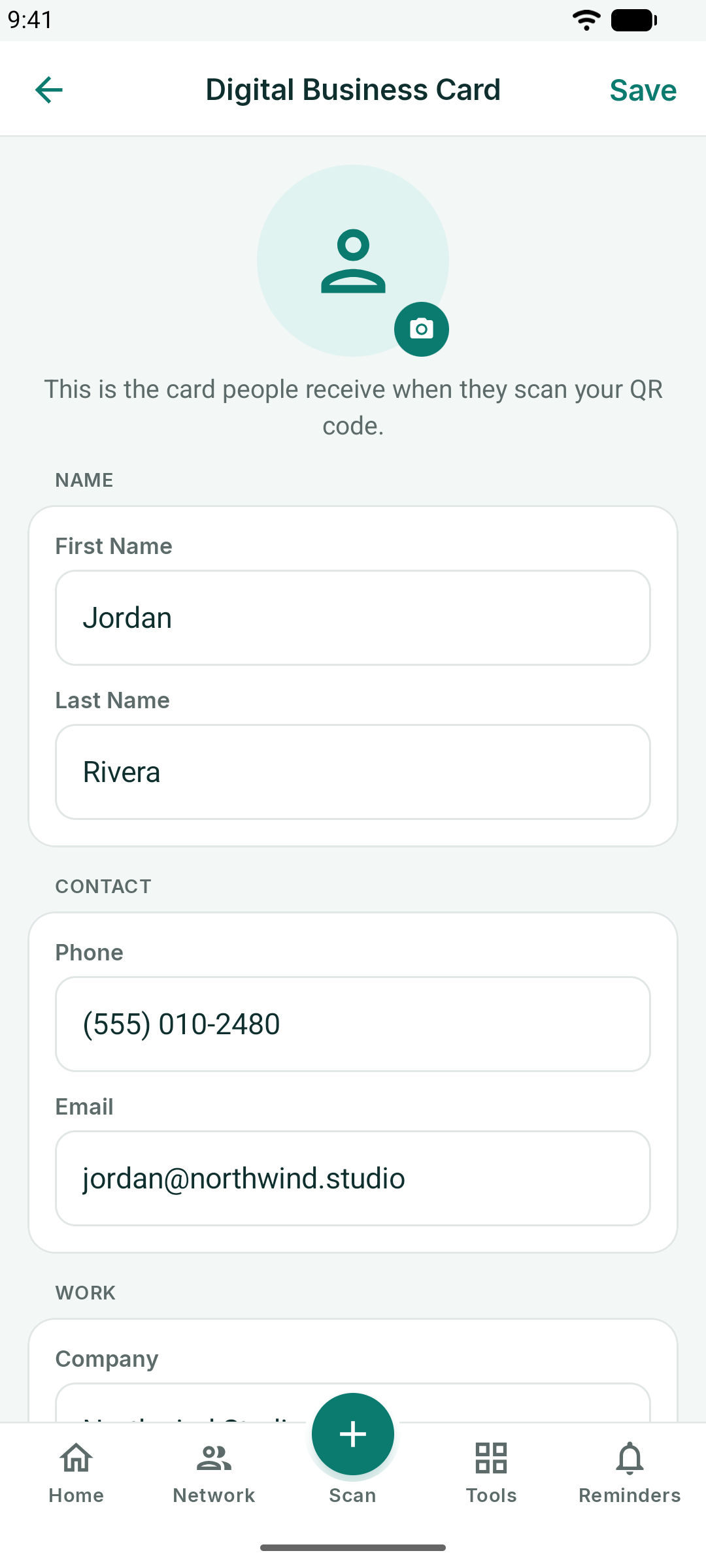
Once saved, Home shows the card with a QR code. When someone scans it with their phone camera, your details open as a new contact on their phone — no app needed on their side.
- Share my card sends your contact card by message, email or any other app you choose, ready to save to the other person’s contacts.
- Save QR Code, under the code, saves it to your photos as an image you can print or add to a slide or flyer.
- Tap your photo on the card, or Settings → Digital Business Card, to edit it.
More about your card: Free digital business card with a QR code.
Reminders
The Reminders tab turns tags into follow-ups.
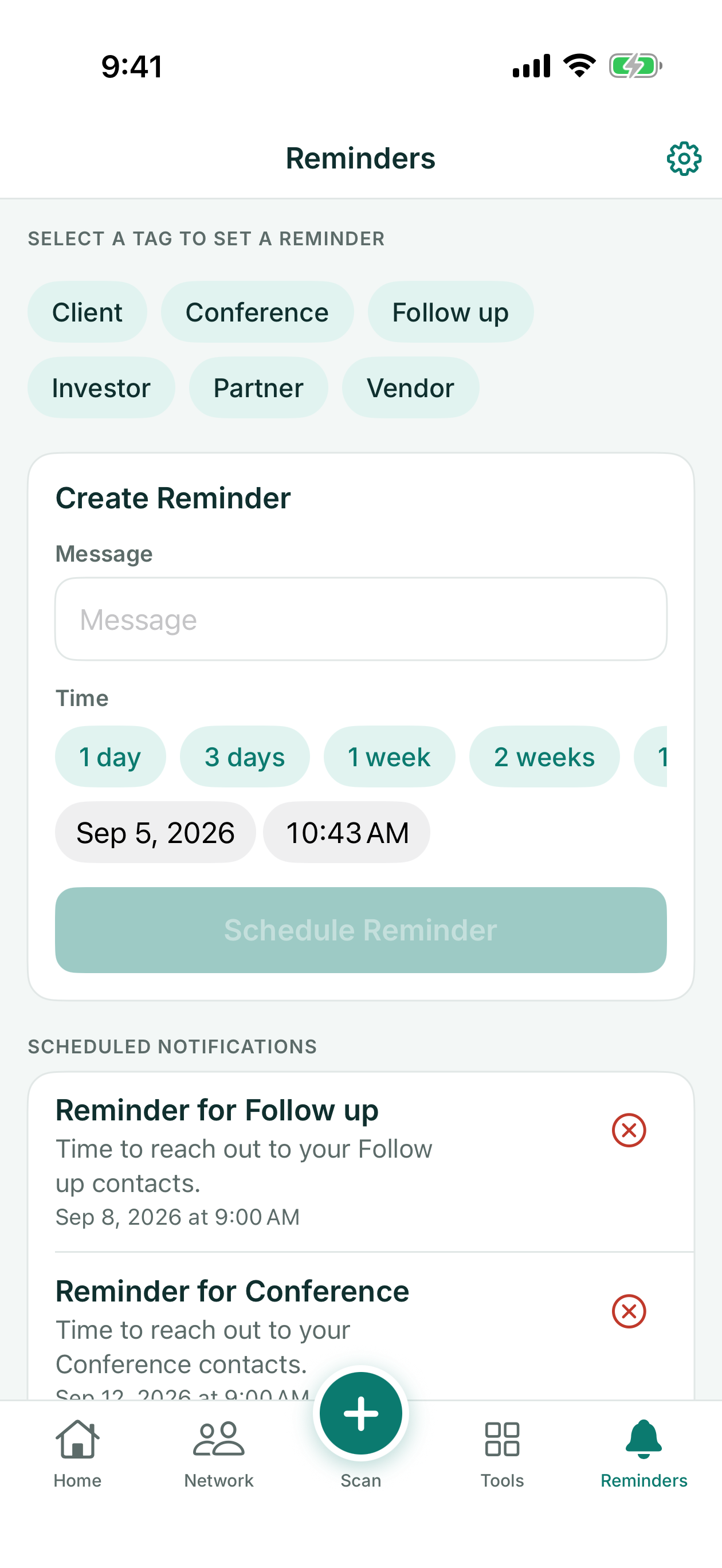
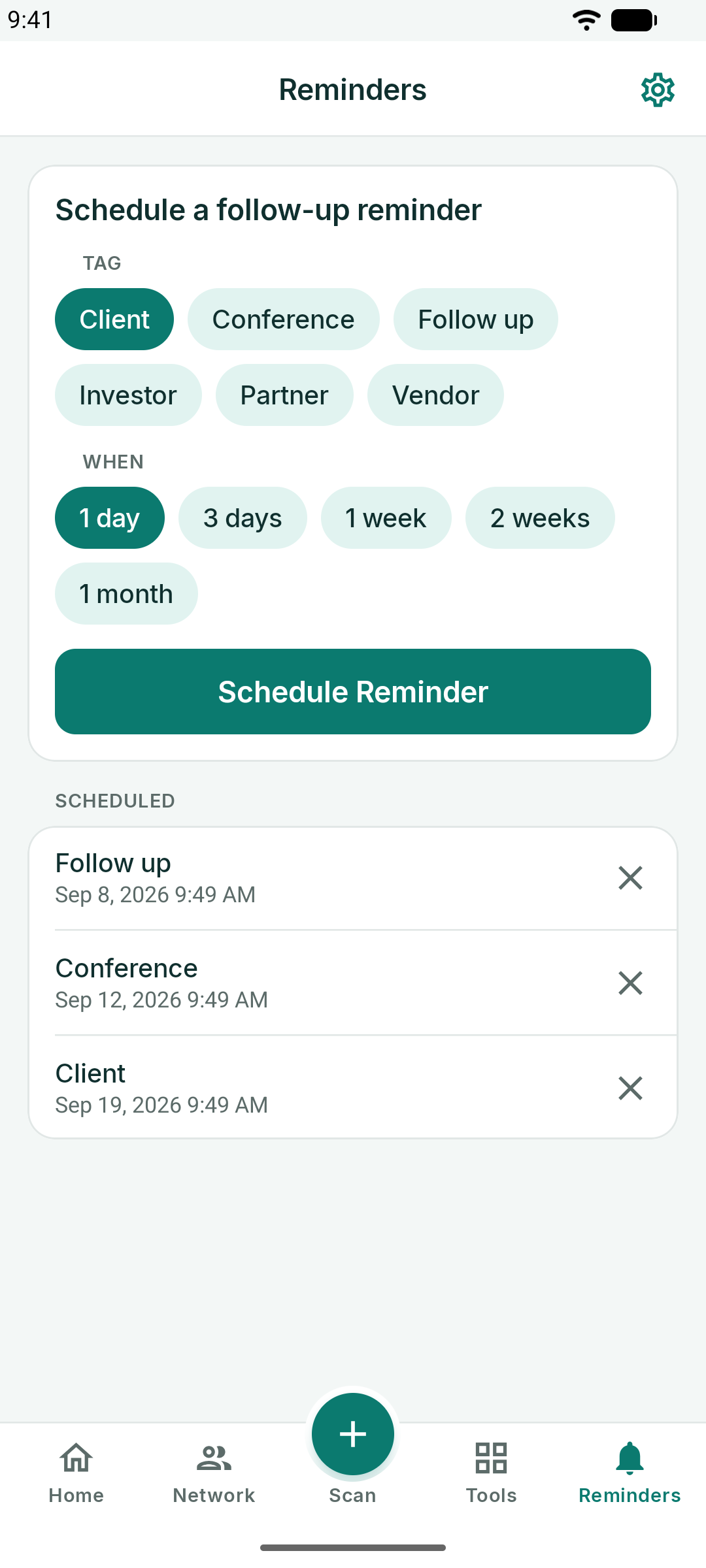
- Pick a tag — for example *Follow up* or *Conference*.
- Type a Message: what the notification should remind you to do, such as "Send the Q4 proposal".
- Choose when: 1 day, 3 days, 1 week, 2 weeks or 1 month, or pick a date and time.
- Tap Schedule Reminder.
KotaDex sends a notification at that time. Scheduled reminders are listed below the form: tap one to change it, or tap the X to cancel it. Notifications need permission the first time — if you declined, Open Settings on the Reminders screen takes you to where you can turn them back on.
The Tools Hub
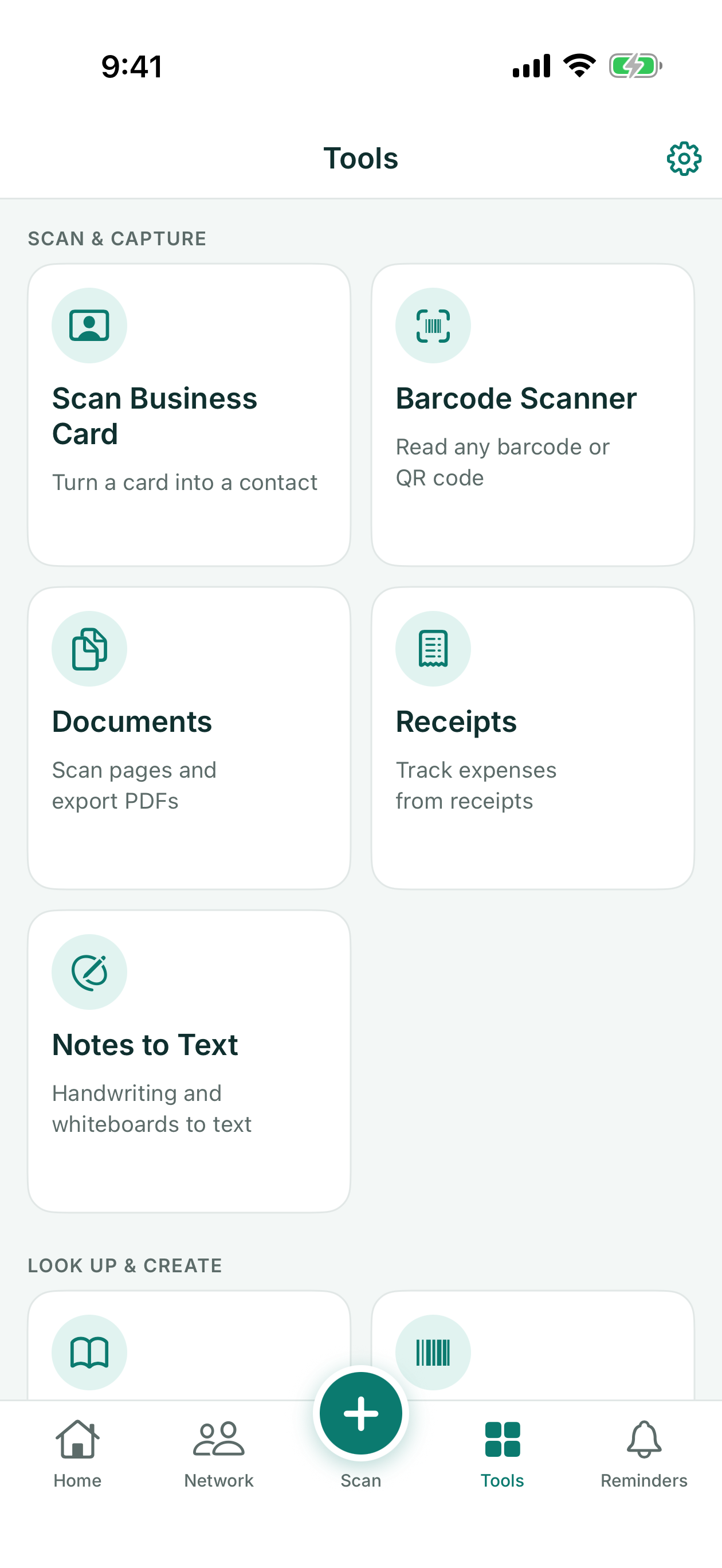
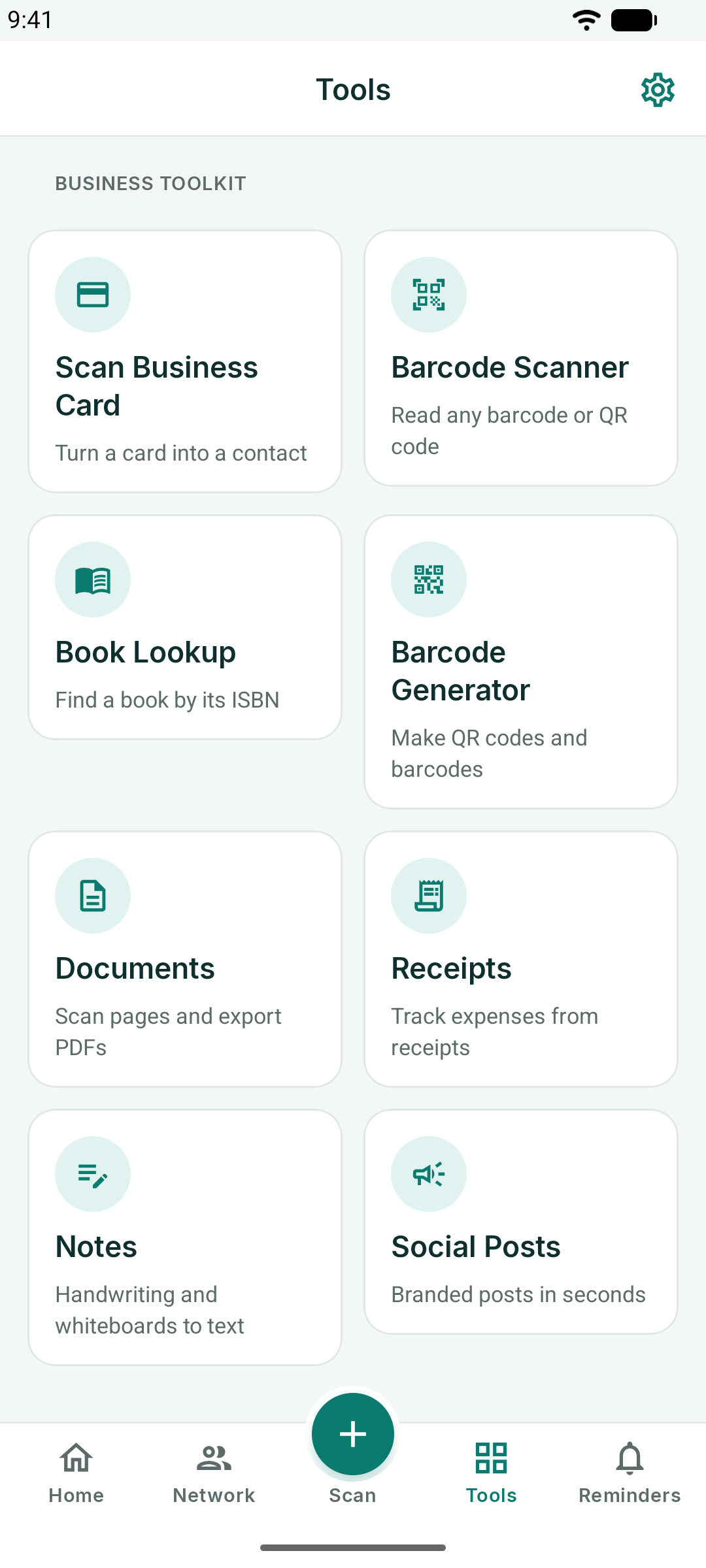
The Tools tab holds seven tools. Each opens full screen and returns to the hub with the back arrow.
Barcode Scanner and Book Lookup
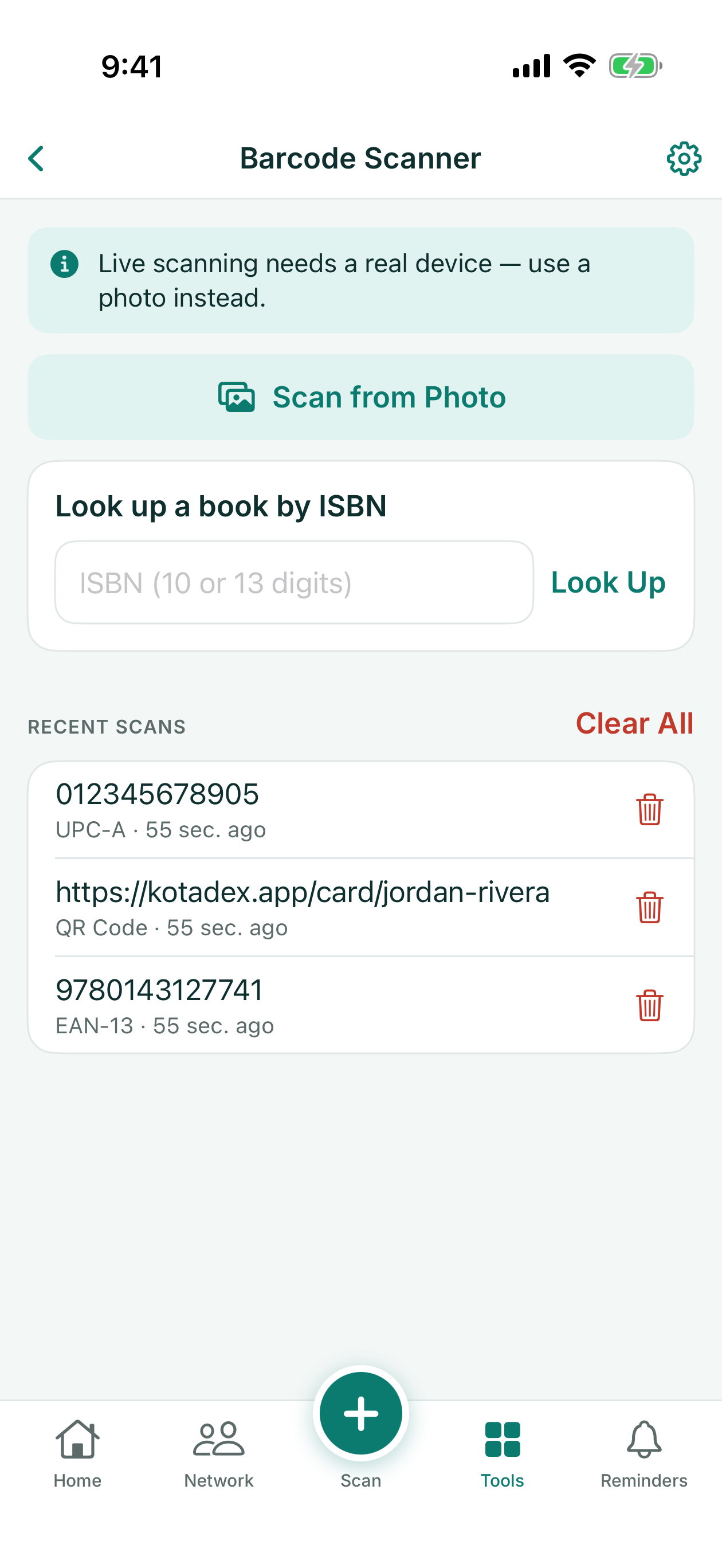
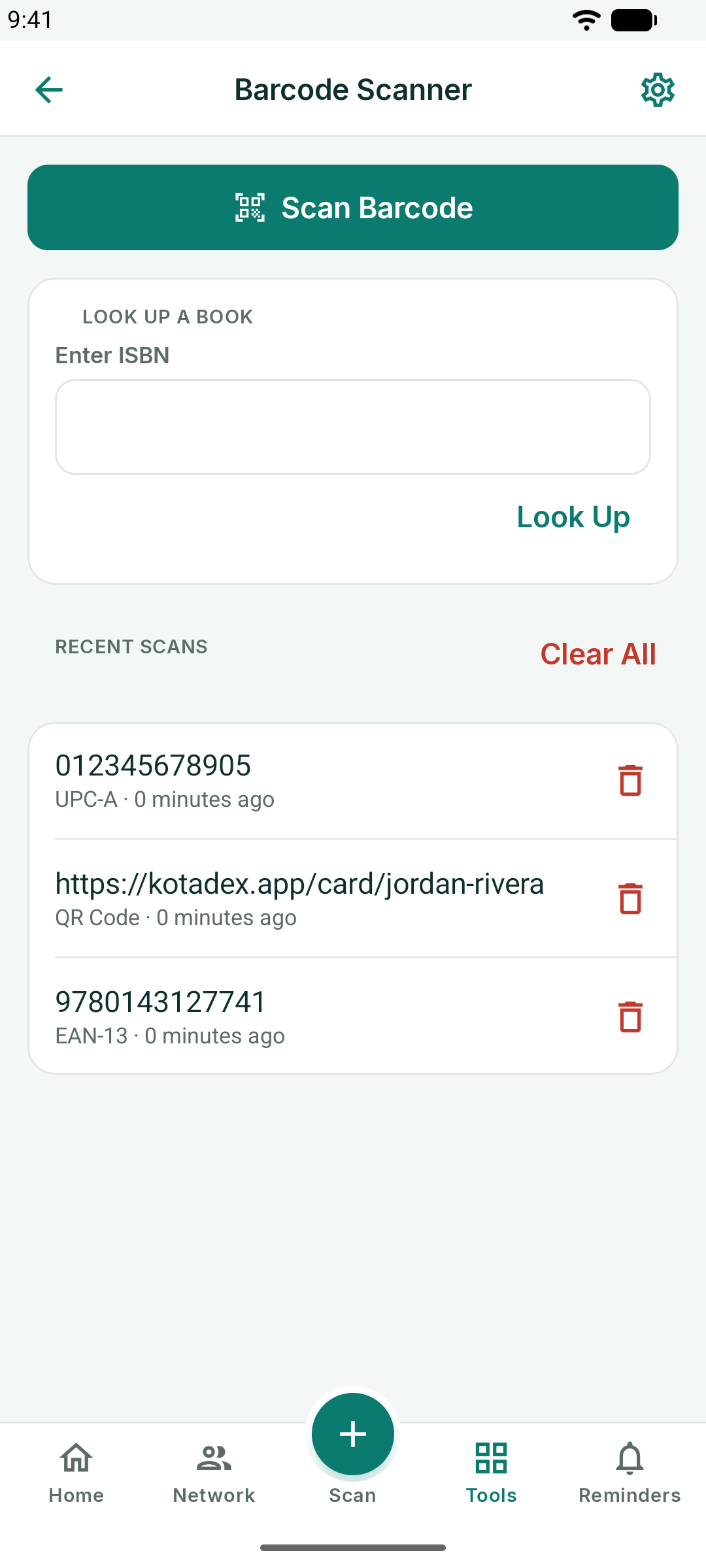
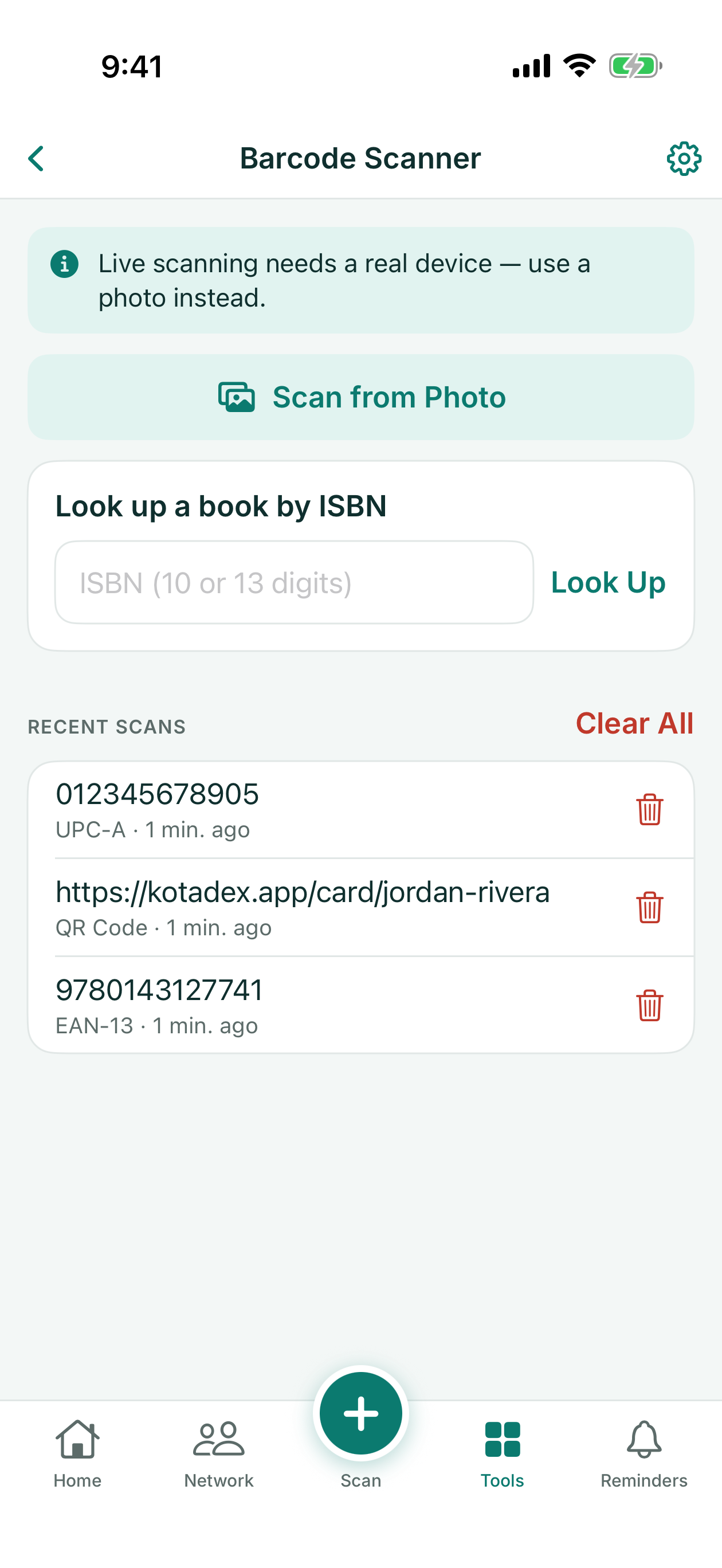
Barcode Scanner reads any barcode or QR code with the camera — on iPhone and iPad also from a photo — and keeps the last fifty scans in a history you can reopen, copy from or clear. Each result offers what fits its contents: open a link, send an email, call a number, or make a new code from it with Generate This Barcode.
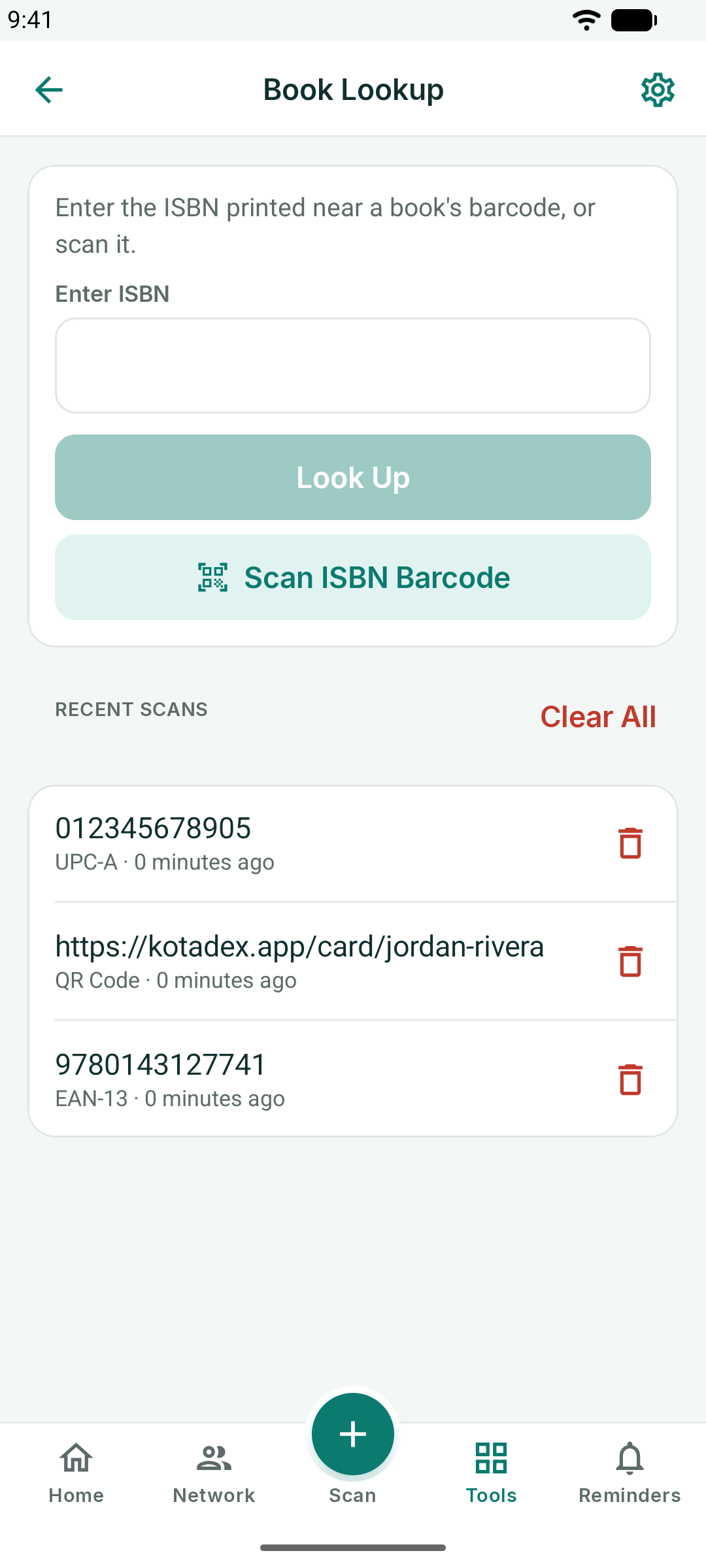
Book Lookup takes an ISBN — scanned or typed — and fetches the title, author, publication date and cover from Open Library, with buttons to open the book in Wikipedia, Google Books, Amazon or Open Library. Only the ISBN is sent.
Barcode Generator
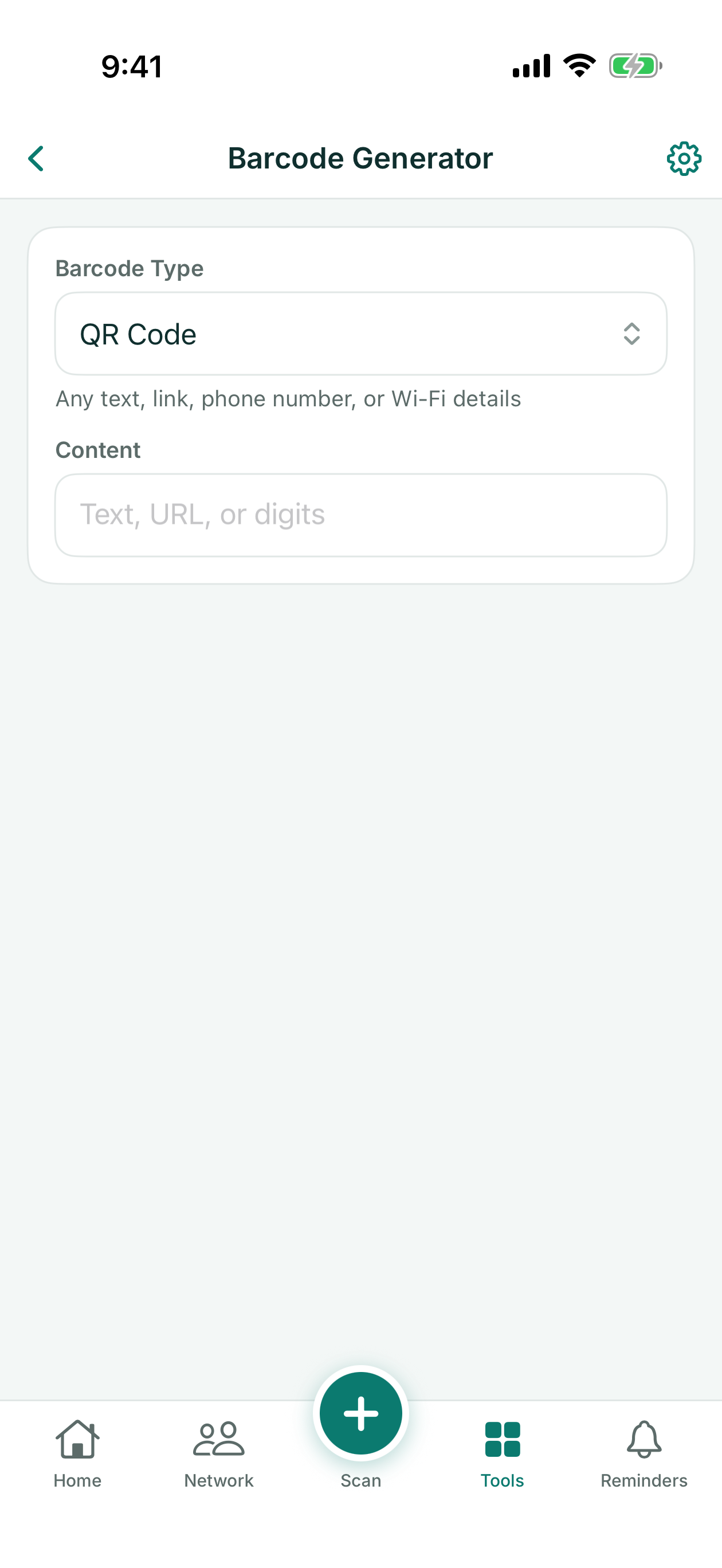
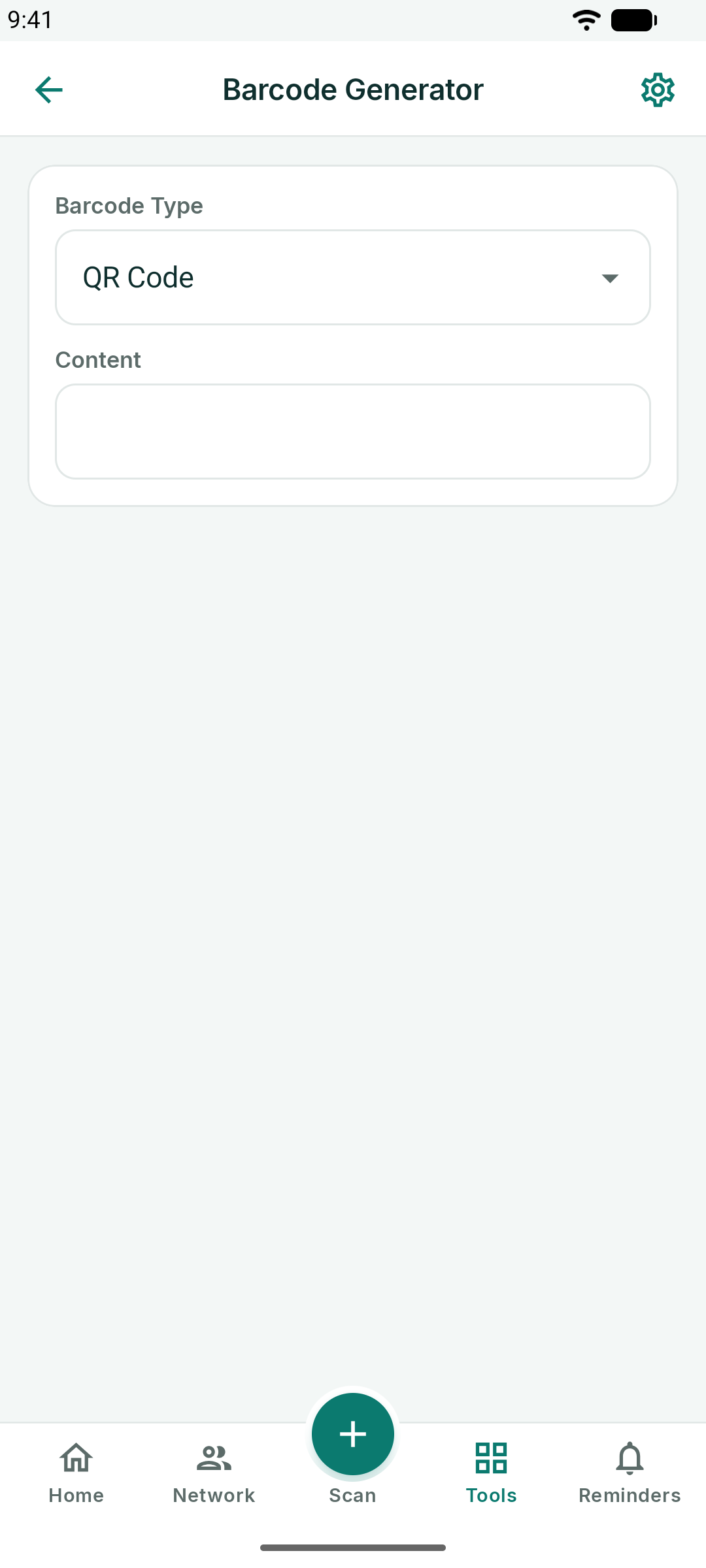
Make a QR code or a barcode — Code 128, EAN-13, UPC-A and more — from any text, link or number. Pick the type, enter the content, and the code renders live; Save to Photos or Share it.
The clock button at the top opens Recent Codes: the last fifty codes you made, newest first. Tap one to open it again, or delete the ones you no longer need.
Documents
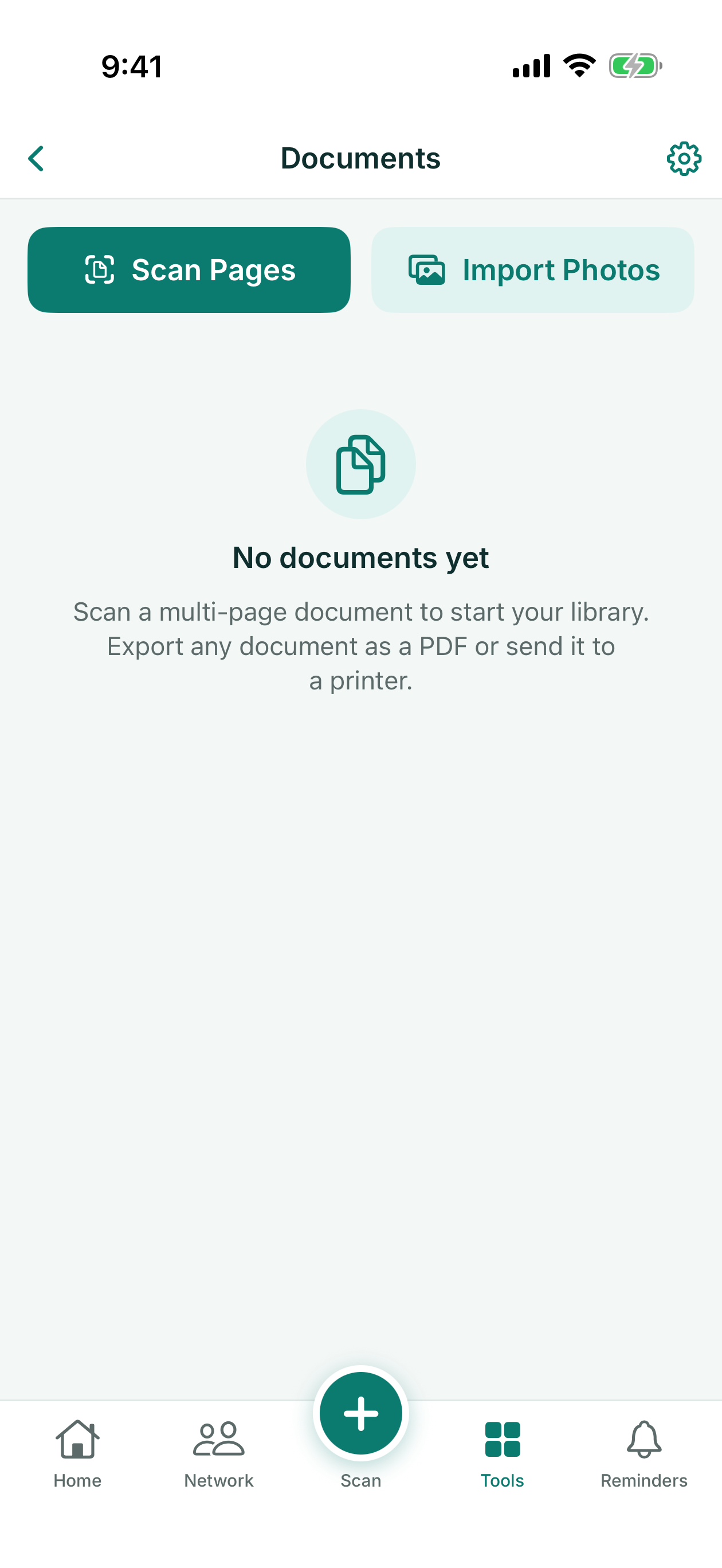
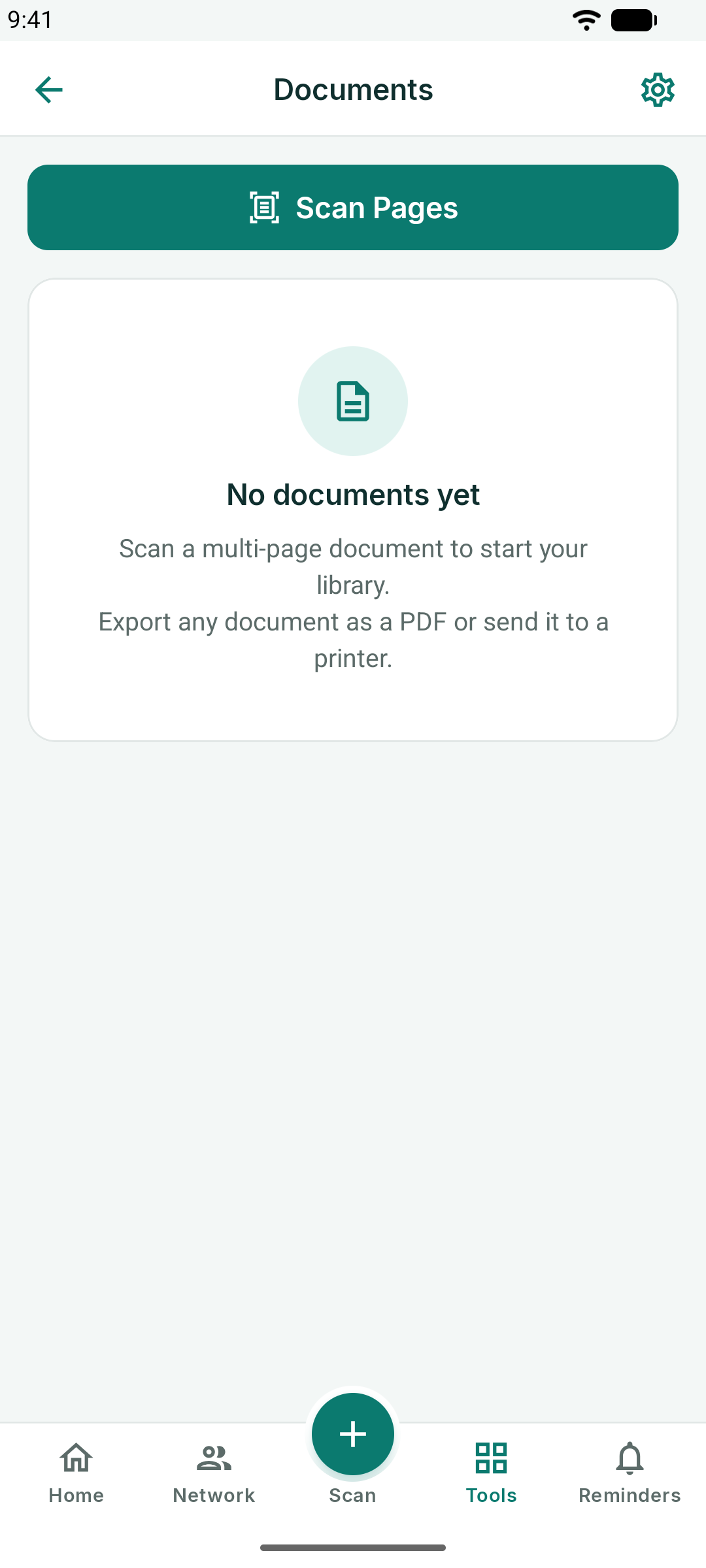
Scan multi-page documents into a PDF: the camera finds each page's edges and straightens it, and you can import pages from your photos too. Name the document, add pages, reorder them, then export, share or print the PDF.
Receipts
Photograph a receipt and KotaDex reads the merchant, date, subtotal, tax, total and payment method. It recognizes the total and tax lines in all the app's languages, including totals without cents, as on yen or won receipts; the scripts it can read from a photo are the ones listed under Scanning a Business Card.
Each receipt keeps its own currency, taken from the receipt or, when the receipt doesn't show one, from your phone's region. File it under a category (Meals, Travel, Fuel, Lodging, Office, Supplies, Other), and KotaDex keeps running totals for this month and all time, one line per currency: amounts in different currencies are never added together.
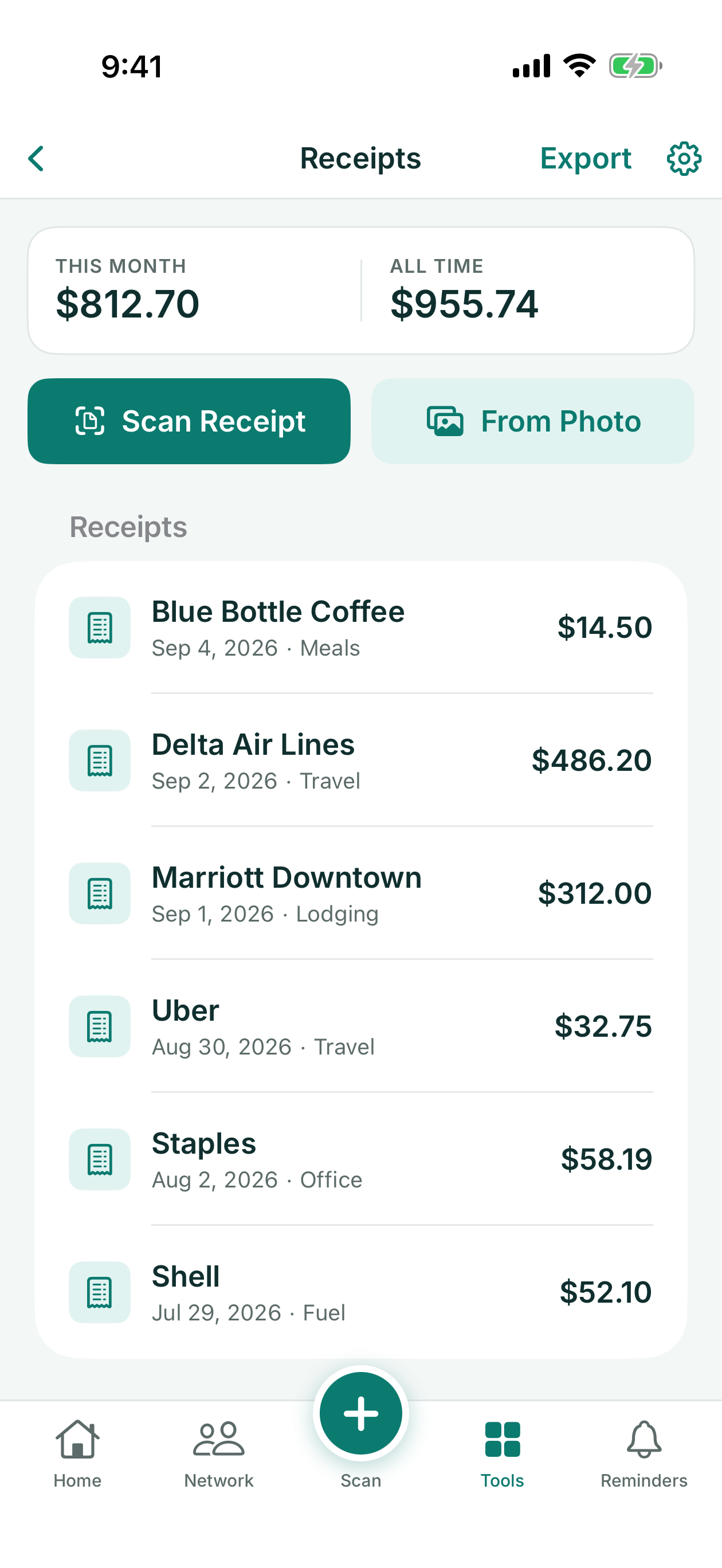
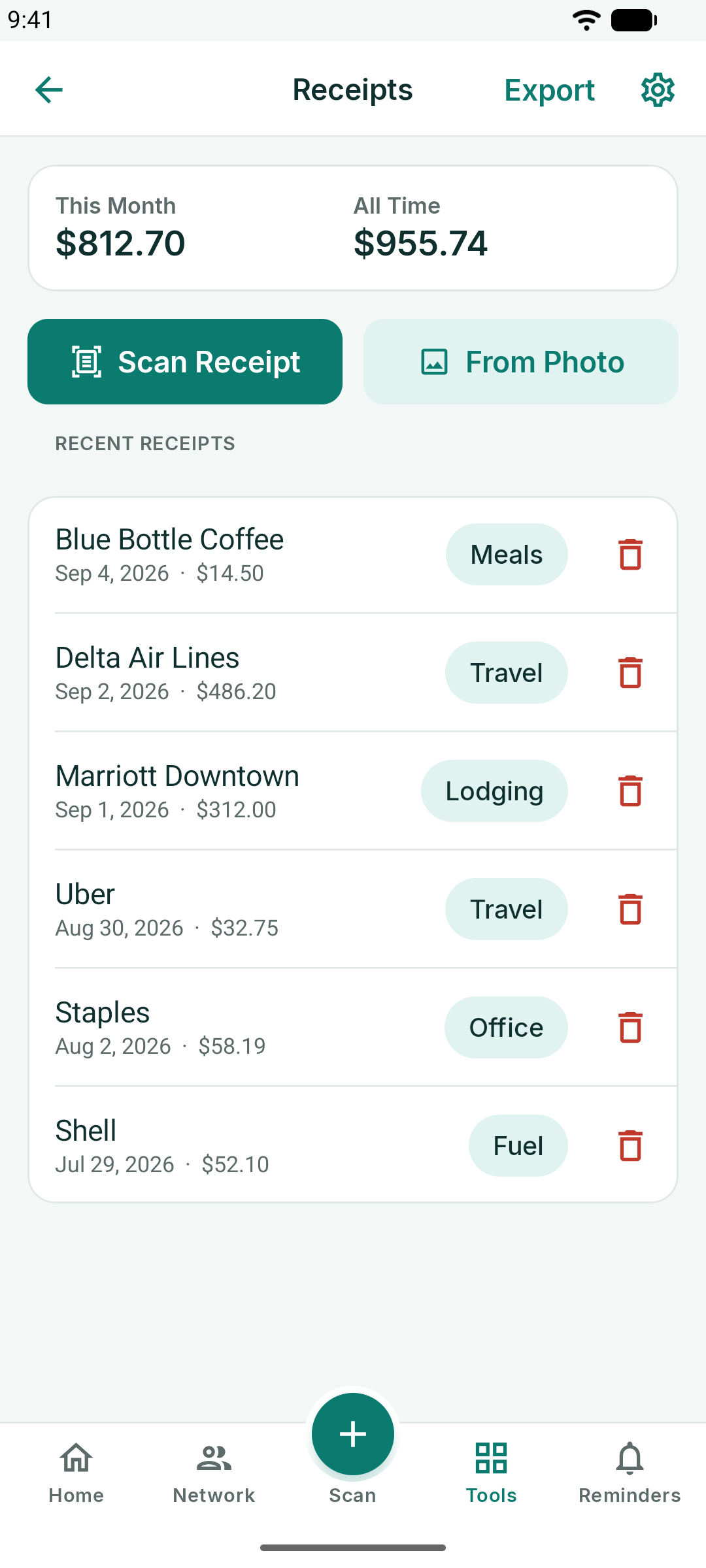
- Scan Receipt uses the camera; From Photo imports one you already have.
- Tap a receipt to correct any field, change the category or pick another Currency.
- Export writes a CSV of every receipt for your expense report, with each receipt's currency in its own column.
Check the total, date and currency before you save. A date such as 05/06/2026 is read the way your phone's region writes dates, and a currency sign such as ¥ can be misread.
More about receipts and the CSV: Scan receipts to CSV for your expense report.
Notes to Text
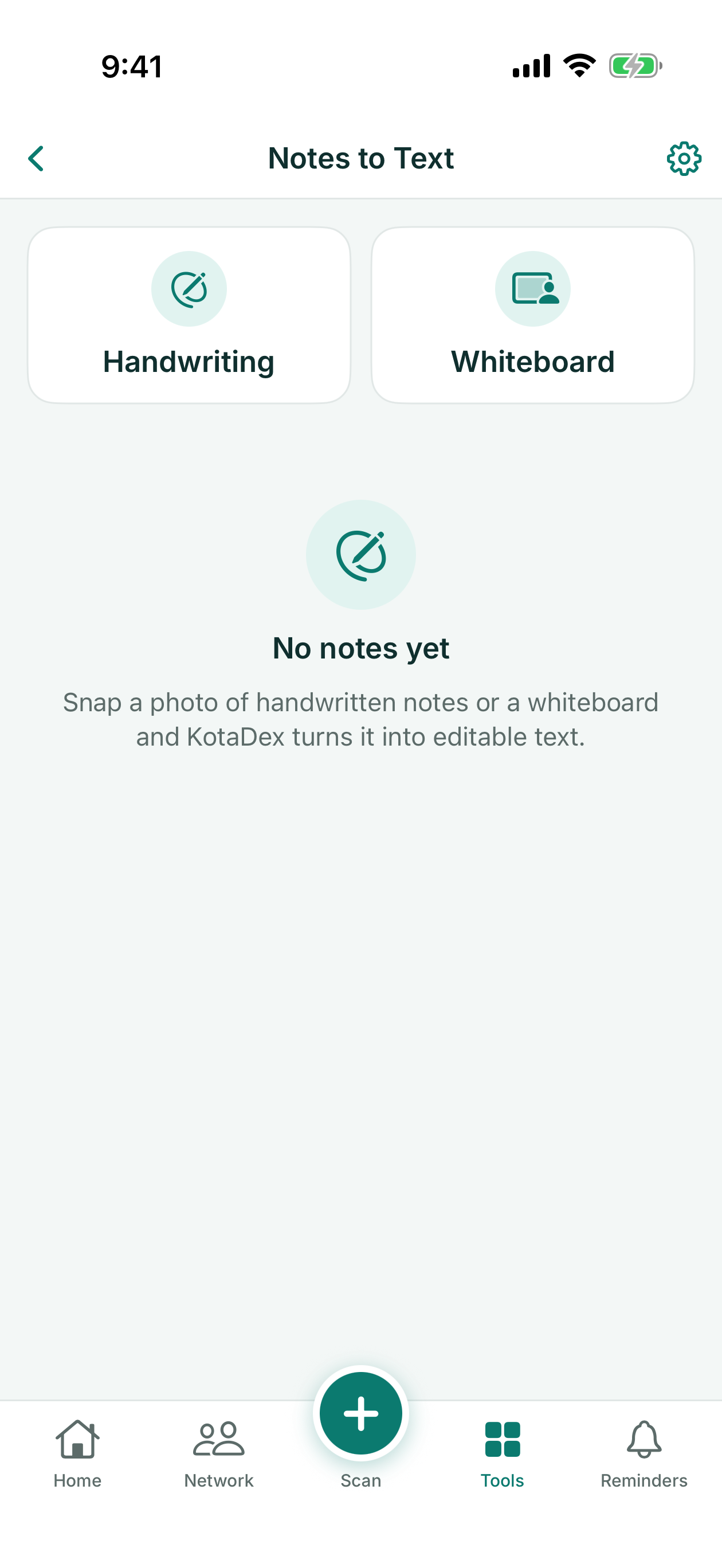
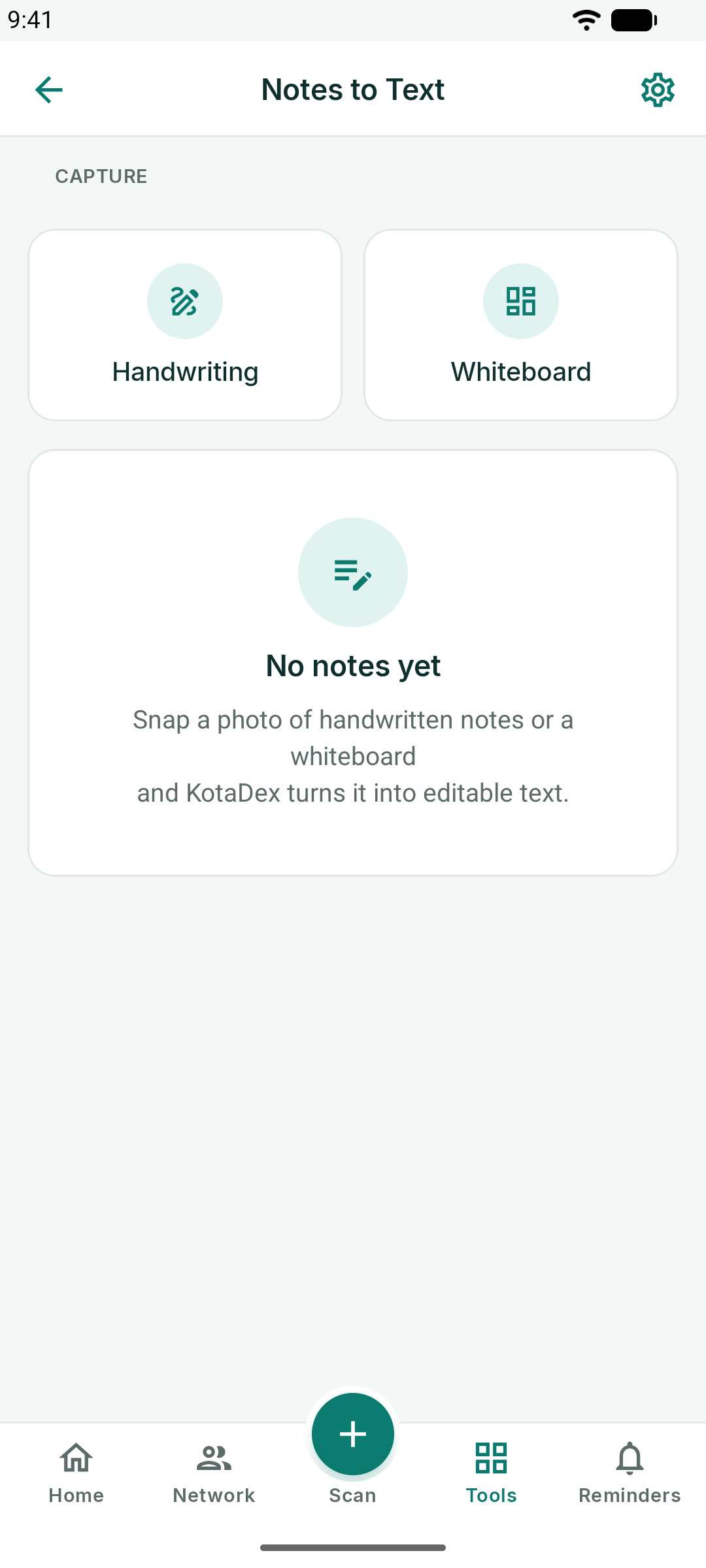
Choose Handwriting or Whiteboard, photograph the page, and KotaDex turns it into editable text. Give the note a title, fix any misreads, then copy or share the text wherever you need it. On iPhone and iPad, Show Original Photo brings back the picture the text came from.
Settings
The gear in the top-right corner opens Settings.
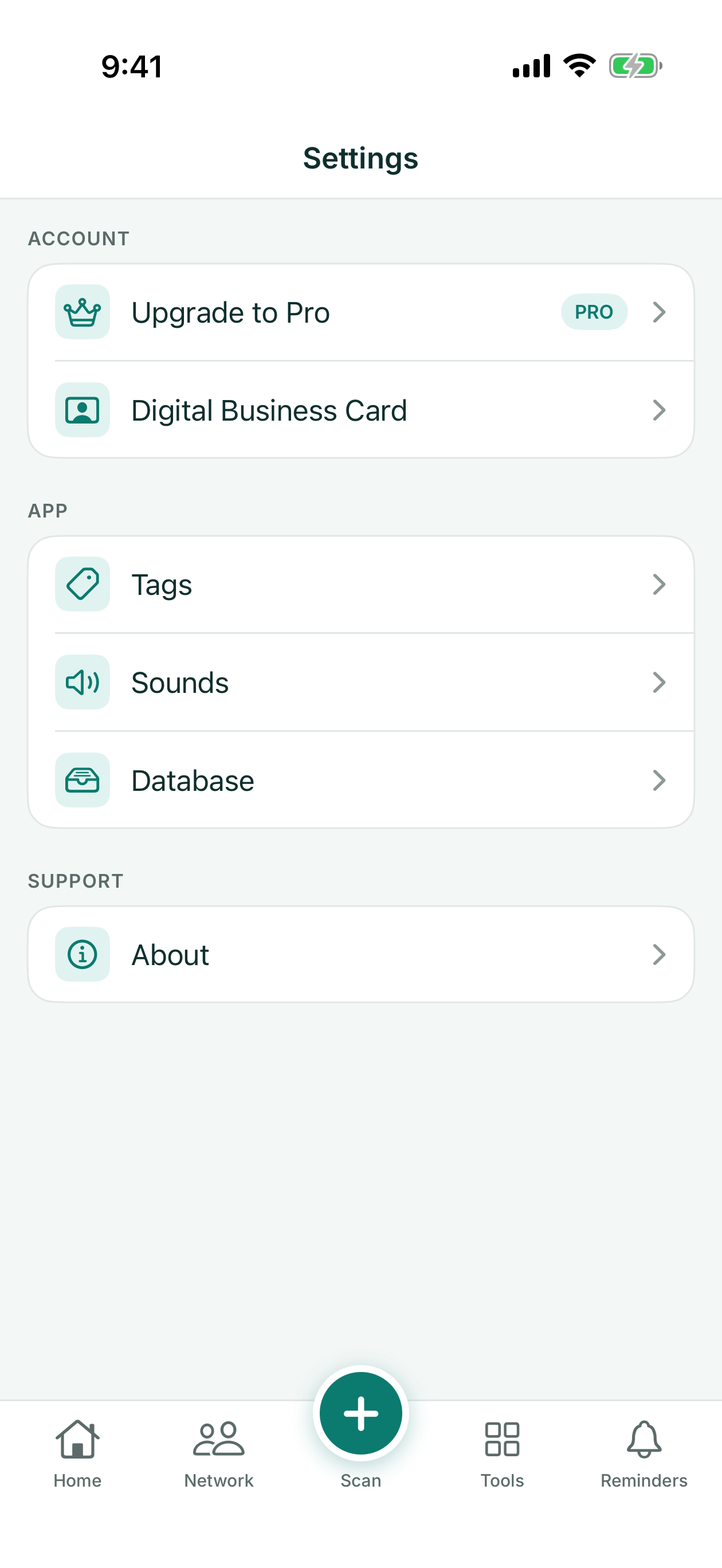
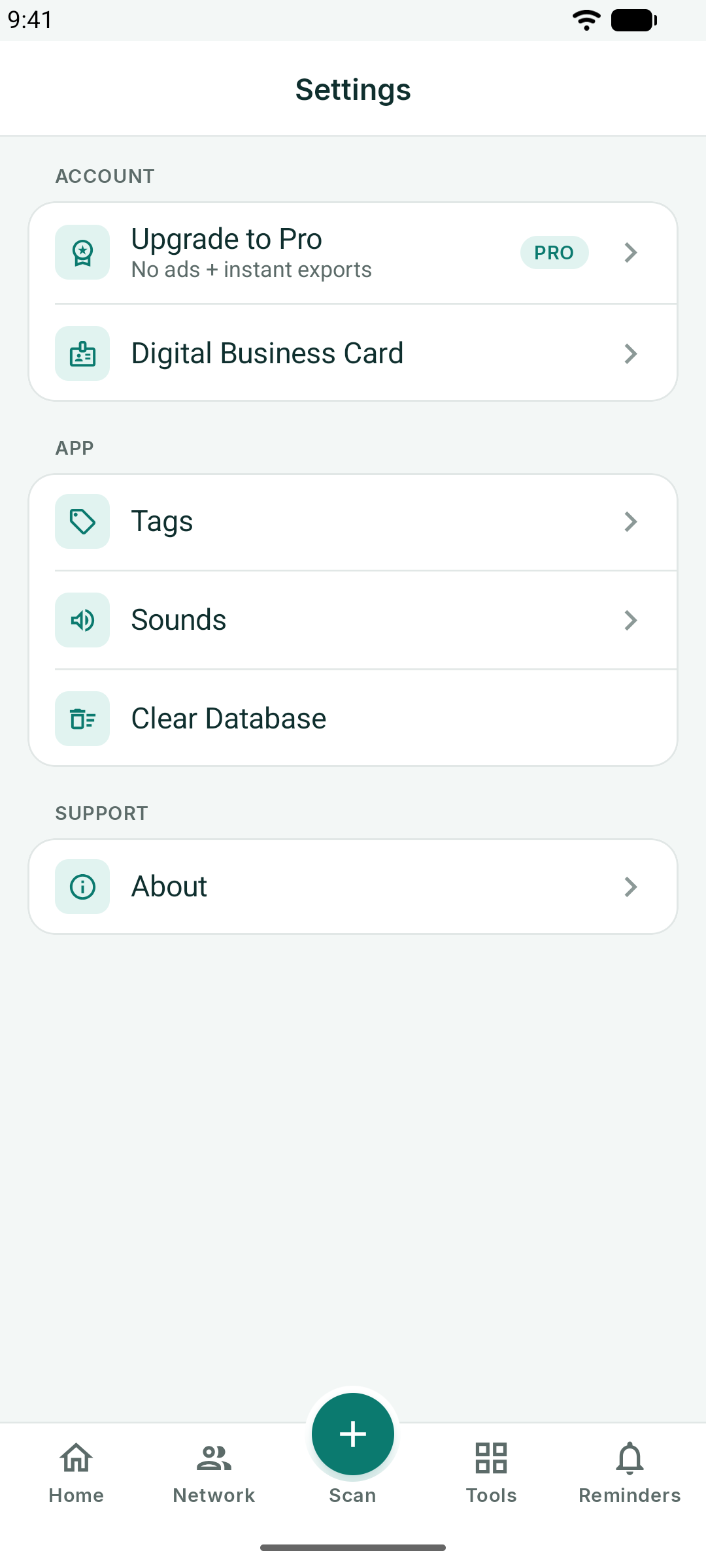
- Upgrade to Pro - plans and restore purchases
- Digital Business Card - edit your own card
- Tags - rename or remove tags
- Sounds - the scan confirmation sound
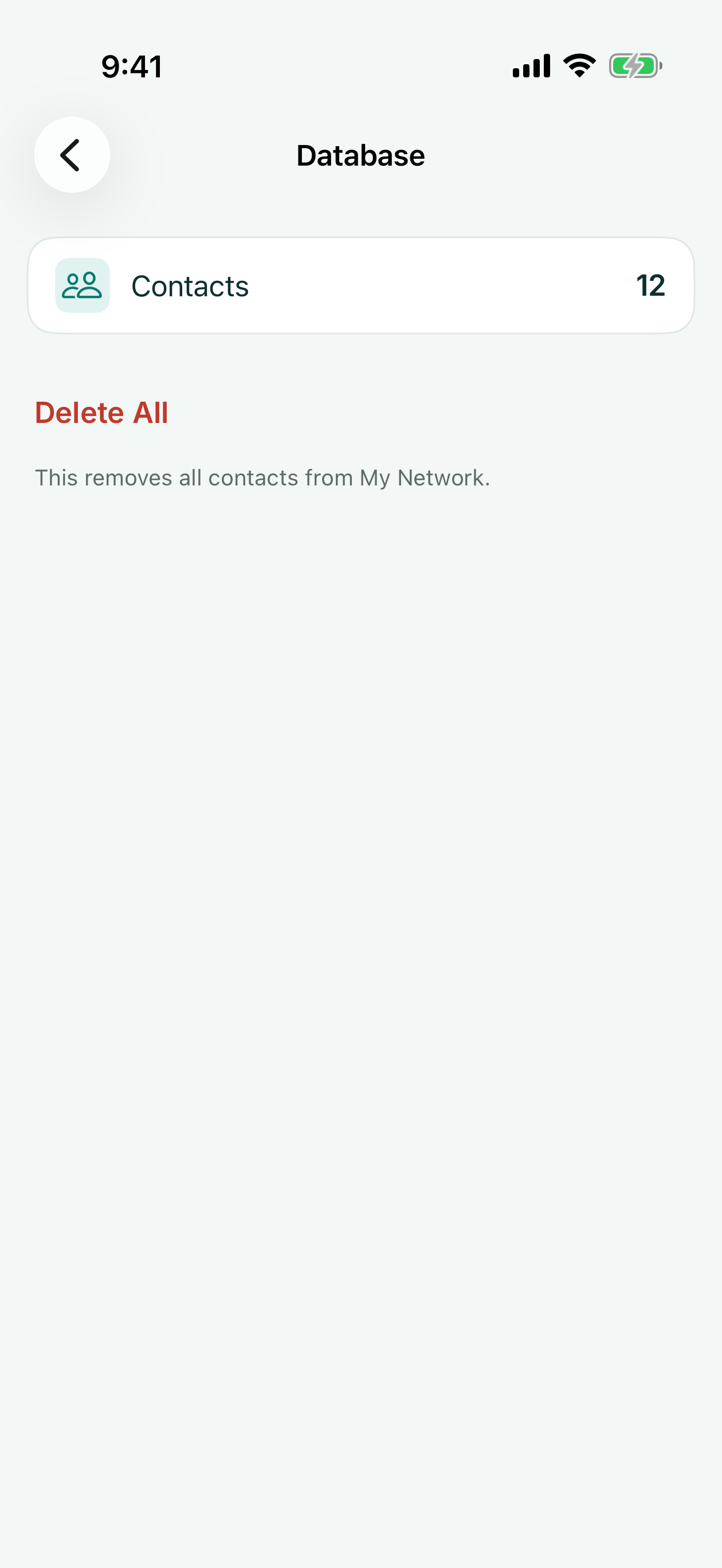
- Database - how many contacts you have, and Delete All (on Android, Clear Database)
- About - version, support email and the privacy policy
- Privacy Options - review or change your ad consent choices and, in the EEA, the UK and Switzerland, your analytics choice (shown where it applies)
Database and Your Data
Everything KotaDex stores lives on your device. Settings → Database shows the contact count and offers Delete All; on Android, Settings → Clear Database does the same. Deleting all contacts also clears every tag and cancels any scheduled reminders, and it can't be undone. Your receipts, documents, notes, scan history and own card are kept (delete those from their own screens), and so are contacts you also saved to your phone's Contacts app.
Deleting the app removes all of its data. There is nothing to delete on our side because we never receive your content — see the privacy policy.
KotaDex Pro
Pro removes every ad and makes exports instant. It is a subscription billed by the App Store or Google Play:
| Plan | Price | Notes |
|---|---|---|
| Free | $0 | Every feature; ads on browsing screens; your first export free, then a short ad before each one |
| Pro Yearly | $5.99 / year | No ads, instant exports — the best value |
| Pro Monthly | $0.99 / month | No ads, instant exports; cancel anytime |
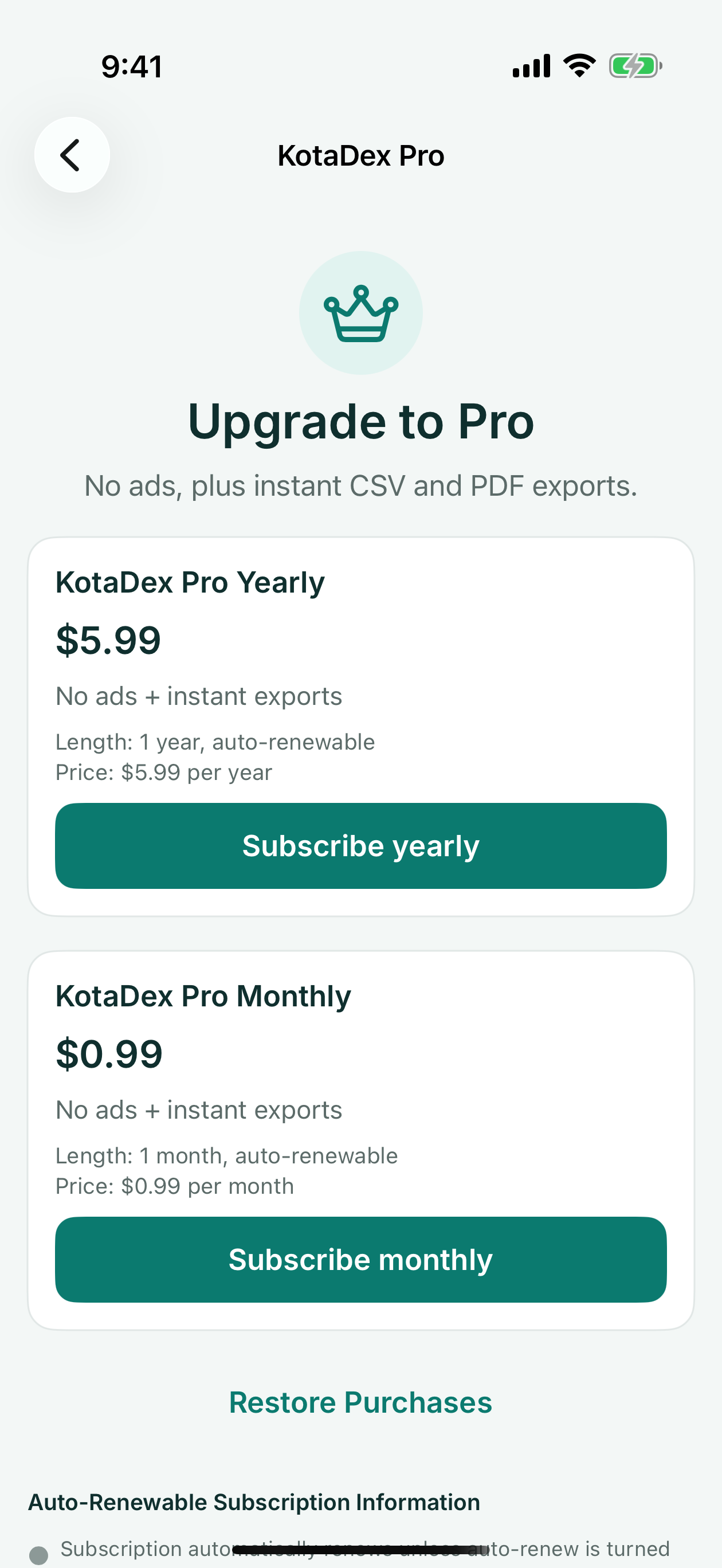
Manage or cancel the subscription in your App Store or Google Play account. Restore Purchases on the Pro screen brings Pro back on a new phone.
Questions? Email [email protected] or use the support form.