Scan receipts to CSV for your expense report
KotaDex reads a receipt from a photo, filling in the merchant, date, subtotal, tax, total and payment method, and you file it under a category. When you're ready, export every receipt as a CSV file for Excel, Google Sheets or your expense report.


Last updated · Covers KotaDex 2.5.0
How to scan receipts and export a CSV
- Open Tools, then Receipts.
-
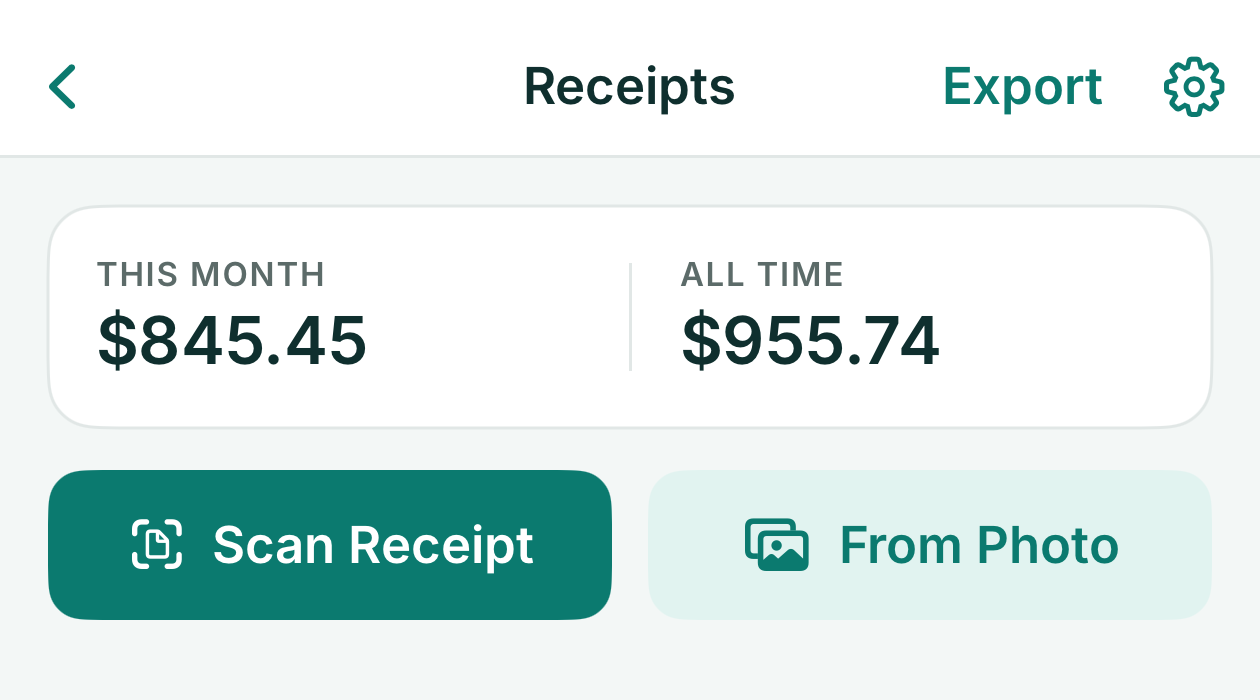
Tap Scan Receipt, or From Photo for a receipt you already photographed.
- Check the details KotaDex filled in.
- Pick a category, then tap Done (on Android, Save).
- When you're ready, tap Export. On iPhone and iPad, the share sheet opens: save the file to Files, or send it by email. On Android, choose Save to Downloads or Share….
Categories and totals
File each receipt under Meals, Travel, Fuel, Lodging, Office, Supplies or Other. These seven categories are fixed, so you can't add your own, but the Notes field is exported too, so you can use it for a project or client name. KotaDex keeps running totals for this month and all time, one for each currency.
Fix a misread
Tap any receipt to correct a field or change its category or currency.
Is it free?
Yes. Your first export is free (one in total, across contacts, receipts and documents); after that, a short ad plays before each export, or KotaDex Pro makes every export instant ($0.99 a month or $5.99 a year in the US).
Questions and answers
What's in the CSV?
A header row, then one row per receipt, newest first, with the columns Date, Merchant, Category, Subtotal, Tax, Total, Currency, Payment and Notes. Dates are written as year-month-day, such as 2026-10-21, amounts as plain numbers, such as 12.50, with no currency sign, and the currency as its three-letter code, such as USD or EUR.
Can I export one month only?
No. The export always includes every receipt. Each row has its date, so you can filter to one month in your spreadsheet, and the Receipts screen shows this month's total.
Does it keep the receipt photo?
Yes. The photo is saved with the receipt on your phone, and you can see it when you open the receipt again. It isn't exported: the CSV holds text only.
Does it work with other currencies?
Yes. Each receipt keeps its own currency: KotaDex takes it from the receipt, or from your phone's region when the receipt doesn't show one, and you can change it when you open the receipt. The Receipts screen shows a separate total for each currency, so amounts in different currencies are never added together. KotaDex reads totals with or without cents, such as 12.50, 12,50 or 1,500, and the words for total and tax in all the languages the app comes in. A date such as 05/06/2026 is read the way your phone's region writes dates.
Check the total and the currency before you save: the yen sign is often misread, as a dot or a 4, and on Android KotaDex reads Chinese, Japanese, Korean or Hindi text only when the app is set to that language.
KotaDex keeps a record of your receipts; it isn't accounting software and doesn't connect to a bank.
Your receipts are read and stored only on your phone. We never receive them. How KotaDex handles your data
More guides
- Export business cards to Excel
- Free digital business card with a QR code
- The KotaDex tutorial: Receipts
- KotaDex home page
Get KotaDex
Free to download for iPhone, iPad and Android.